Build a Discord FAQ and Feedback Bot with Google Sheets
A Discord FAQ and feedback bot answers product questions from your documentation and records members’ explicit submissions in Google Sheets. It can also collect questions the docs cannot answer and flag conversations th…
以下正文同步自 Hacker News 最新,版权归原站所有,已转换为易读排版。
A Discord FAQ and feedback bot answers product questions from your documentation and records members’ explicit submissions in Google Sheets. It can also collect questions the docs cannot answer and flag conversations that need a person.
This tutorial builds that workflow in Quickchat AI for Beacon Labs, a fictional SDK company. You will configure a Knowledge Base, two AI Actions, and Human Handoff. The source articles, prompts, request bodies and test messages are included, so you can reproduce the setup without writing or hosting a bot service.
The recipe treats “Please submit a feature request for CSV export so I can prepare weekly reports” as an instruction to record the request immediately. The team reviews it afterward. The testing and tuning examples show how to check the saved records, handle failed writes, and improve the Agent’s decisions.
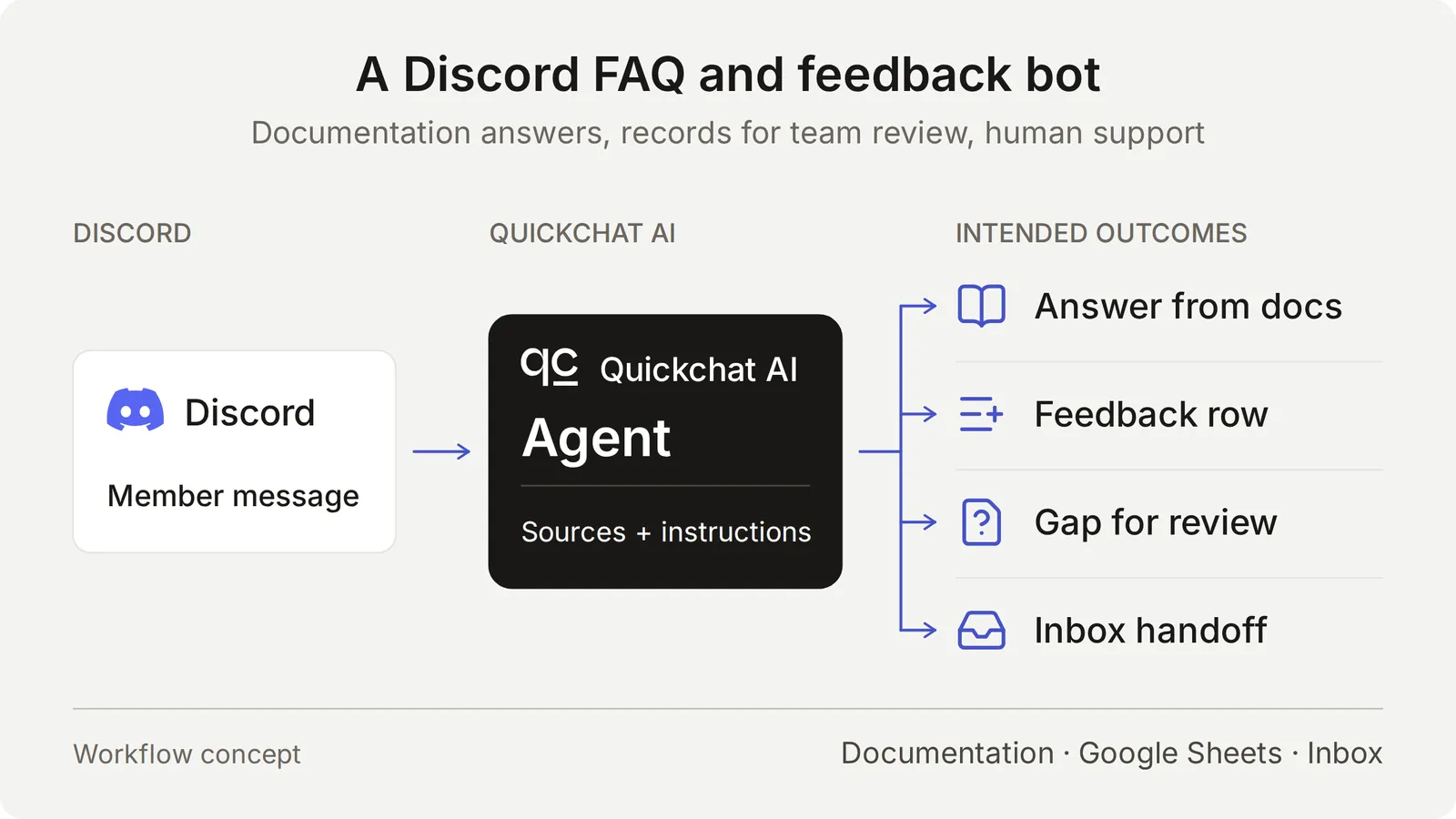
The member’s intent determines which of four routes the Agent should take. Each route has a different result to verify.
Concept diagram of the intended workflow. The recording Actions append to separate spreadsheet tabs.
The Agent responds when a member addresses it through supported Discord interactions. A fixed greeting can invite that conversation; it does not run the recording Actions. The Discord welcome bot guide covers that entry point.
Discord carries the conversation, the Knowledge Base supplies product facts, and two AI Actions append structured records to a Google spreadsheet. Human Handoff keeps requests for a person in the team’s Quickchat AI Inbox.
An Action has a fixed HTTP method, destination, and body template. The model decides whether to call it and fills the parameters you define. Quickchat AI supplies the token and conversation context when it sends the request.
The model chooses the content. The platform supplies the connection and conversation values. Check both the Action result and the saved row.
The Google Actions work with the shared one-click Discord connection because they use a Google credential. Discord administration Actions, such as creating private tickets or changing roles, need your own Discord bot credential and are a separate setup.
For feedback, the Main Prompt and Action description instruct the model to record a complete, explicit submission request. A valid Action call sends the request immediately. An ordinary question, quoted example or brainstorming message should produce no feedback row. Documentation-gap recording is automatic and also needs team review.
Required and No default address missing parameter values. They do not determine the member’s intent, reject every meaningless value, or prove a record is complete. Compare the member’s actual request, the Action parameters, and the resulting spreadsheet cells.
Use a dedicated demo Agent and a test channel so the example’s fictional content and records stay together.
Download the Beacon demo kit for the five source articles, Main Prompt, JSON bodies, sheet headers, and test inputs. These are editable setup files, not a one-click import. The full prompt and source articles also appear at the end of this guide.
The entry plans cover personal testing and commercial use:
Replies, AI Preview and Simulation Testing use credits. Consumption depends on the selected model, so include test runs in your budget. See Quickchat AI pricing for plan details.
Yes, they can prepare most of the configuration through Quickchat AI’s account MCP connector. The assistant can create a dedicated Agent, save its Main Prompt, add knowledge articles, configure the two Actions, and prepare a Simulation Testing dataset. Your community then uses the Agent in Discord.
Open Manage your AI in above the dashboard sidebar to find these connection options. This is the real local dashboard.
Use the Quickchat AI connector to prepare the Beacon Community Assistant from the attached demo kit. Inspect the available tools and my Agents first. Use an empty dedicated Agent or create one; leave my other working Agents alone. Show me the chosen Agent's name and ID.
Save main-prompt.txt and the five knowledge articles verbatim. Configure record_community_feedback and record_documentation_gap exactly as sheets-recipe.md and the supplied descriptions and JSON bodies specify. Preserve AI decides, RAW append, the updatedRows response filter, null defaults for required parameters, and the empty-string default for optional partial_answer.
After I authorize Google Sheets, read the native starter Action to obtain its spreadsheet URL. Turn that starter off without renaming it. Use the Google Sheets System Token placeholder. Keep the two reporting Actions inactive until both tabs and their headers are ready.
Create the Beacon FAQ and gap checks dataset from simulation-messages.txt and simulation-rubric.txt, without running it. Give me the Discord authorization link to open myself and set Reply in channel to match this guide.
Read back the saved configuration and list the browser steps I still need to complete. Do not run tests yet.
You still authorize Google Sheets, choose and approve the Discord server, and configure Human Handoff in the dashboard. The management connector also has no spreadsheet tab editor: create Feedback and Knowledge gaps and paste their headers in Sheets, or use a separately connected Sheets tool.
Once those steps are complete, check that the articles show Ready and ask the assistant to activate the two reporting Actions. You can then ask it to run selected test conversations or a Simulation dataset and inspect the replies and Action logs. These tests use credits and active Actions can write real rows.
The numbered steps below give you the exact settings to review, whichever setup route you choose. The account MCP guide also covers other compatible AI clients.
Create five short articles so the Agent has enough knowledge to answer useful questions and one deliberate gap to discover.
Actual local Knowledge Base containing the five fictional source articles.
The package names and versions are teaching data; do not install the fictional packages. Create the four channels named in the channel-map source, or adapt that source to your test server’s channel names.
Leave SAML out of these sources for the initial test. That missing information gives you a deliberate documentation gap to measure. Adding a made-up negative answer would remove it.
For your own product, replace these facts with approved documentation. The documentation-to-support-Agent tutorial covers importing a real public site.
The Main Prompt connects the knowledge, submission, recording, and handoff rules into one conversation policy.
The opening of the current prompt in the real local editor. Paste the complete prompt from the appendix or download, including the workflow rules below this excerpt.
For feedback, the intended sequence is receive a complete submission request → append → acknowledge → team review. If details are missing, the Agent asks the member to send the complete request together in one message.
For a documentation gap, it checks each factual part of the question, records what remains unanswered, and preserves the supported answer. Neither a feedback row nor a gap record promises a release or a fix.
Before adding Actions, open AI Preview and ask Does JavaScript SDK 2.4 support Node.js 22?. Confirm that the reply uses the documented answer. If it does not, check the article contents and processing status before adding recording behavior.
The native Google connection creates a spreadsheet and a starter Action whose endpoint already contains the correct spreadsheet ID.
Category Summary Requested outcome Conversation link Channel Recorded at Status
Knowledge gaps, cell A1:
Question Missing information Supported partial answer Conversation link Channel Recorded at Status
Each header fills columns A through G. Keep the header on row 1 and the table contiguous. Team members can add manual Owner or Review notes columns to the right.
Concept map of the two tabs. The order of the seven values in each request body must match its header row.
The connection uses Google’s drive.file scope for files created or opened through the app. The native setup creates its own workbook; see Google’s scope documentation.
Share the workbook only with the teammates who will review it. If the Action shows Incomplete, finish the Google connection before testing a write.
Connect the shared Discord bot so you can verify the conversation where members will use it. AI Preview can also exercise the Actions, but it does not prove Discord delivery or conversation continuity.
The actual Discord FAQ check. The matching conversation made no recording Action call.
Compare the Inbox conversation references. Seeing a reply in the same Discord channel does not establish one stored conversation.
In our Reply in channel test, using Discord Reply to a bot message still created a separate Inbox conversation. The Agent could recover nearby message text, but the stored conversations were separate.
That is why this recipe uses complete submission messages. It does not rely on a later “yes” retaining earlier Action history. Other members can still see a public discussion, so keep private account details out of it.
The Discord integration documentation covers supported triggers and the own-application option. Repeat the addressed-message check after changing reply mode or permissions.
The first Action appends a Feedback row when a member explicitly asks to submit a sufficiently detailed feature request or bug. The acknowledgment summarizes what was saved. Build it with Add Action → API Action.
Three editor fields connect the conversation to the request:
Both recipes below follow the same field order. Copy the descriptions verbatim; they guide the model’s decisions as well as the contents of the row.
API Action Name: record_community_feedback
Select No default for all three parameters. An unset value is different from an authored empty-string default: the Action must obtain each required value instead of filling it from a default. Still inspect the proposed text for missing details or invented requirements.
Actual local editor with all three feedback parameters required and their defaults unset. Use the full descriptions in the table above; the input fields show only their beginnings.
API Endpoint: choose POST. Paste the complete starter URL, then replace everything from /values/ onward with this suffix. Keep the existing API prefix and generated spreadsheet ID.
/values/Feedback!A:G:append?valueInputOption=RAW&insertDataOption=INSERT_ROWS&includeValuesInResponse=false
Headers:
Select the Google Sheets token through Add AI Data → System Tokens. The other {{...}} placeholders are the parameters and platform values listed earlier.
Body: paste the following into the Body tab of API Endpoint.
{ "majorDimension": "ROWS", "values": [ [ "{{category}}", "{{summary}}", "{{requested_outcome}}", "{{conversation_url}}", "{{conversation_channel}}", "{{current_timestamp}}", "New" ] ] }
Actual local editor showing the method, URL and Body tab. Its demonstration spreadsheet ID is not a connected Google workbook; use the complete URL created by your own connection.
Detail from the same editor. The first three chips carry feedback fields; the next three supply the conversation link, channel and time.
Append one Beacon Labs feature request or reproducible bug when the current member message explicitly asks to submit or record it and supplies enough detail for category, summary and requested_outcome. Use only that request's supplied facts. If details are missing, ask for a complete self-contained request instead. Do not request a second approval. Never run for ordinary questions, brainstorming, quoted suggestions, bare yes/thanks, do-not-submit messages, or requests to revise or withdraw an existing row. A successful call adds a new row for team review; it does not update, delete or dedupli
正文由 探How 从来源站点 RSS 同步,内容未经改写;遇到排版缺失或需要图片、视频时请以原文为准。