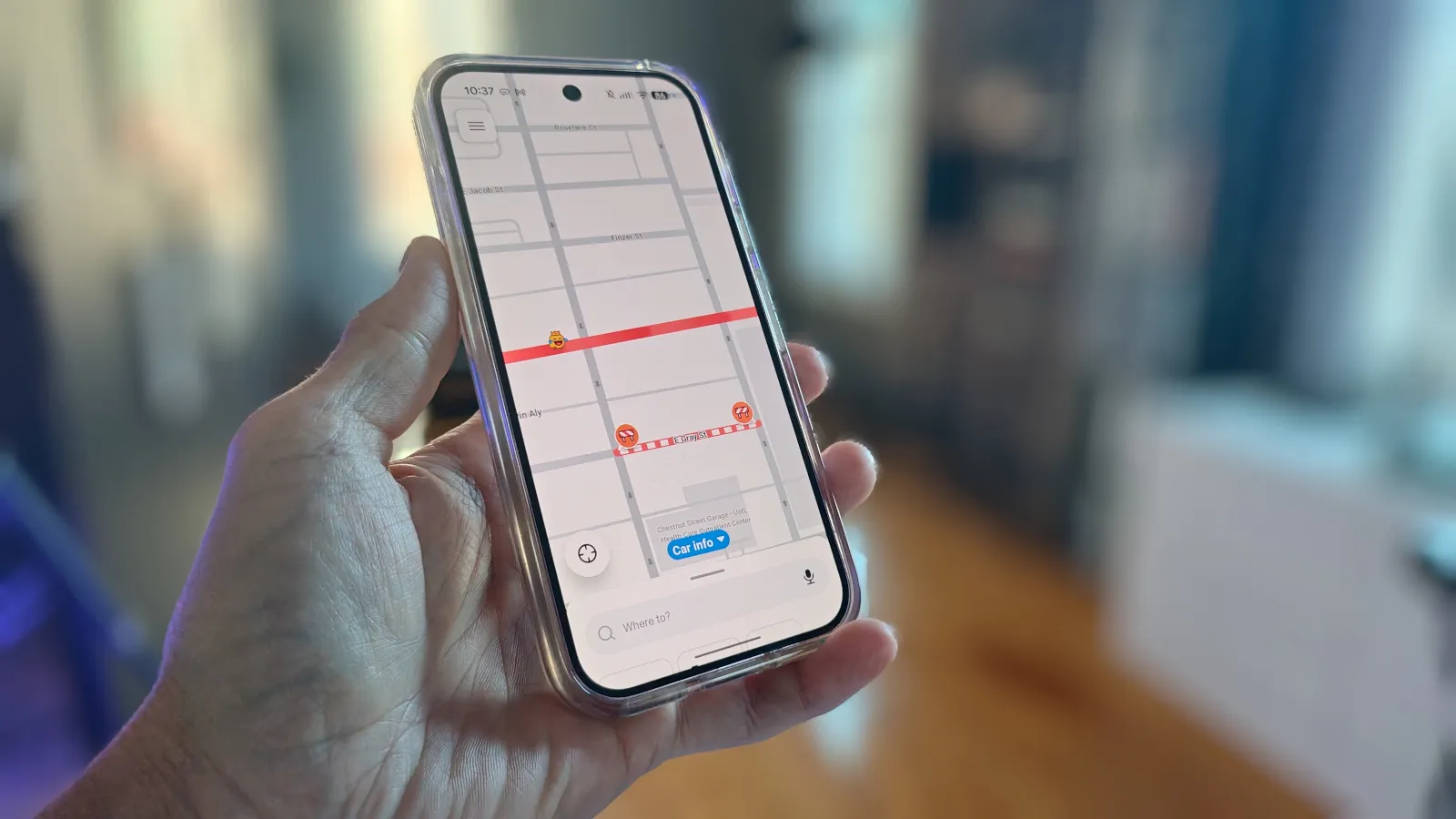
Not impressed with Google Maps? Make Waze your default on Pixel – here’s how
If you’re tired of Google Maps failing to get you where you need to go, set Waze as the default on your Pixel. I’ve finally figured out how.
以下正文同步自 ZDNet AI,版权归原站所有,已转换为易读排版。
Tech > Services & Software > Operating Systems > Mobile OS > Android
If you're tired of Google Maps failing to get you where you need to go, set Waze as the default on your Pixel. I've finally figured out how.
Read full bio
October 21, 2026, 9:00 pm ET
Jack Wallen/ZDNET
Over the weekend, I found myself saying, “I’ve had it with you, Google Maps!” It was a straw-that-broke-the-camel’s-back situation: The app wasn’t working as expected, failing to start navigation, and the ever-growing klunkiness of the interface was really getting to me.
Also: Got an old car? Android Auto is easy to add: 2 ways, starting at $20
There were other issues that involved a lake’s name, but we won’t get into that. After that proverbial final straw fell, I immediately installed Waze on my Pixel 9 Pro. I’d used Waze before on previous Pixel phones, but for whatever reason, I stopped. Now, I was determined to make it my default mapping app.
Little did I know how frustrating that would be.
In its infinite wisdom, Google decided it wasn’t going to allow users to easily set a different app as the default mapping tool on the Pixel. It used to be very easy: install the new app, navigate to default apps, and set it as such. That’s no longer the case after the August Android update. Go to Default apps, and you won’t even find a way to set a different mapping app as your default.
Also: I was a big wireless Android Auto fan, until I tried wired – now I won’t go back
Sure, you could locate Waze on the default page and then choose how to open web links for the app, but that doesn’t really do anything to make it your default because it still doesn’t allow apps like Calendar to open it by default.
All that said, I did finally figure out a way around this, and it’s actually kind of simple. Try it for yourself and enjoy a superior mapping app as the default on your Pixel phone. A note: I found I had to do this on other Android phones as well. The only phone type I wasn’t able to test it on was a Samsung.
The trick is easy. The first thing to do is install Waze via the Google Play Store. Once you’ve done that, if you open Waze, you won’t be prompted to set it as your default, and you won’t find a way to do so in the Waze settings.
Instead, you have to first disable Google Maps.
Open the Settings app and then tap the Apps entry.
You probably won’t see Google Maps listed at the top, unless you’ve recently opened it. If not, tap See all apps to expand the listing.
Scroll down until you find the Maps entry and tap it.
Also: I tested Google Maps vs. Waze to find the best updated navigation app – and this one wins
On the resulting page, you’ll see a button labeled Disable. Tap that entry so it then changes to Enable.
At this point, the only mapping app Android will be aware of is Waze. You can test that by opening an address from, say, a calendar appointment. Waze should automatically open. You might also be prompted to set Waze as the default; if so, do so.
To use Waze with Android Auto, you have to add its icon to the launcher. To do that, go to Settings > Connected Devices > Connection Preferences > Android Auto > “Customize launcher” and make sure that Waze is checked. Once added, you can then move it up in the list so it’s easier to access.
And that’s all there is to setting up a different mapping app as the default.
Log In to Comment
Log Out
Community Guidelines
Please accept cookies to view the comments powered by Disqus.
正文由 探How 从来源站点 RSS 同步,内容未经改写;遇到排版缺失或需要图片、视频时请以原文为准。