LectureInk: Open-source study notes from video tutorials
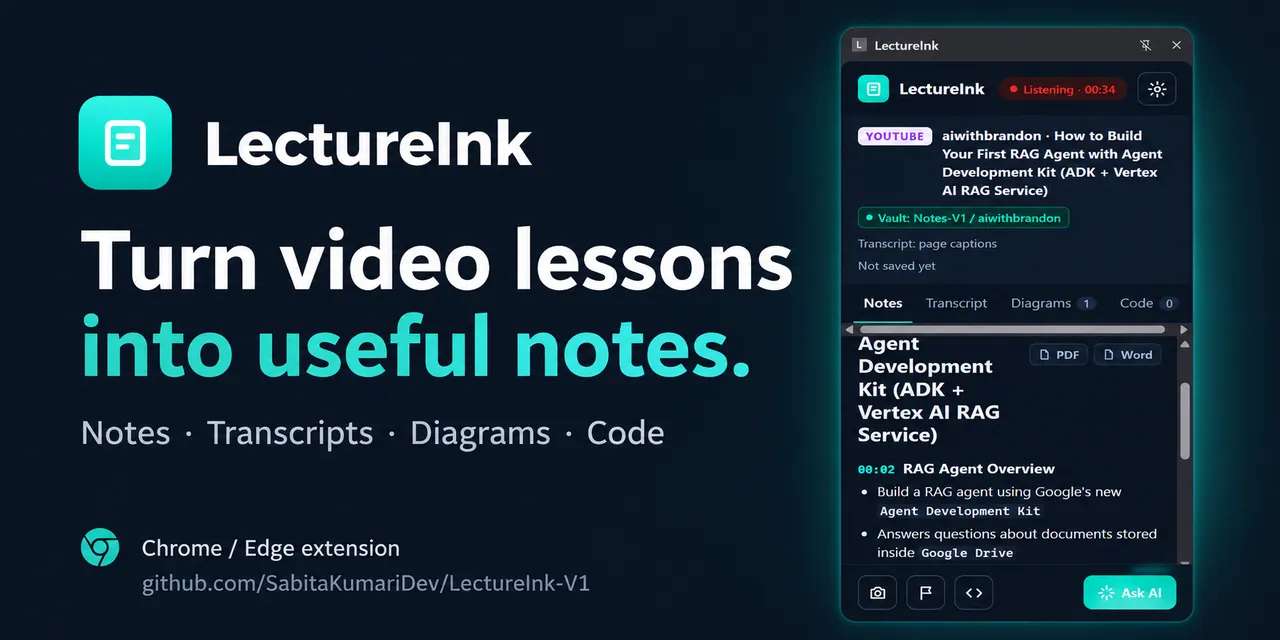
LectureInk is a free, open-source browser extension that takes notes while you watch a lecture video. It reads the captions (or the audio) and watches the picture. It then writes structured notes into your own markdown …
以下正文同步自 Hacker News 最新,版权归原站所有,已转换为易读排版。
LectureInk is a free, open-source browser extension that takes notes while you watch a lecture video. It reads the captions (or the audio) and watches the picture. It then writes structured notes into your own markdown folder, such as an Obsidian vault:
It works on YouTube, Udemy, Coursera, and any other page with a <video>, in Chrome and Edge.
There is no LectureInk server and no account. You bring your own API key, and everything stays in your browser and your notes folder. Video frames and transcript text are sent only to the AI provider you choose.
npm install npm run build # Chrome / Edge → .output/chrome-mv3
Chrome / Edge: open chrome://extensions (or edge://extensions), turn on Developer mode, click Load unpacked, and choose .output/chrome-mv3.
For development with live reload, use npm run dev.
- Open LectureInk
Open a lecture video, then click the LectureInk button in the browser toolbar. The LectureInk panel opens on the right side of the window.
Click the gear icon at the top of the panel to open Settings. Under Notes folder, click Choose and pick the folder where your notes should go, such as your Obsidian vault. When the browser asks, allow LectureInk to edit files in that folder. Once a folder is connected, its name shows there and the button changes to Change, so you can pick a different folder later.
After a browser restart, the panel may show Click to reconnect your notes folder. Click it once to give access again.
Under AI, pick your provider (Claude, OpenAI, Gemini, Grok, Kimi or Local) and paste your API key into the key box. There is no button to press. LectureInk checks the key on its own as soon as you paste it:
Pick a model from the list. Choose one that can read images, so LectureInk can read code and diagrams from the video.
Settings are saved as you change them. Click the back arrow to return to your notes.
Press play. The status button at the top changes to Listening, and notes appear in the panel as the lecture goes on. Click that button to pause or resume note-taking.
Keep the panel open while you watch. Closing it stops note-taking.
Notes, Transcript, Diagrams, Code tabs: the full note, the spoken text, and just the diagrams or code.
Timestamps: click any time to jump the video to that moment.
Diagrams: click a diagram to edit it in Excalidraw.
Ask AI (the button at the bottom right) opens a chat about the lesson you are watching. Type a question, such as "Why does the key decide the partition?" or "Explain this code more simply", and press Ask.
The three buttons at the bottom left of the panel let you add things to your notes yourself:
Saved automatically. While the folder is connected, LectureInk writes the note, its screenshots and its diagrams into your folder every few seconds. Nothing needs to be clicked. Each lesson gets its own folder:
<notes folder>/<Course>/<Lesson>/<Lesson>.md <notes folder>/<Course>/<Lesson>/attachments/<mm-ss>.jpg <notes folder>/<Course>/<Lesson>/diagrams/<mm-ss>-<title>.excalidraw.md
To open the diagram files in Obsidian, install the Obsidian Excalidraw plugin.
Save as PDF or Word. On the Notes tab, next to the lesson title:
Both include the notes, code, screenshots and diagrams in one document.
Provider Notes
Claude Default model claude-opus-5-5
OpenAI, Gemini, Grok, Kimi Use their OpenAI-compatible endpoints
Local Any OpenAI-compatible server. For Ollama, start it with OLLAMA_ORIGINS=chrome-extension://*
Pick a model that can read images. Settings lists each provider's current models once you enter its API key, and shows a short built-in list until then.
When a playing video shows no captions for 20 seconds, LectureInk records the video's audio in 30-second chunks. It sends each chunk to a speech-to-text service you configure in Settings: OpenAI, Groq, or a local OpenAI-compatible Whisper server.
DRM-protected players (some paid courses) show a black picture to screen capture, and their audio cannot be recorded. Notes then come from captions only.
Videos inside cross-origin iframes are captured as the whole visible tab, not cropped to the video.
The side panel must stay open while you watch. Closing it stops note-taking.
Per-site selectors for titles and captions live in lib/platforms.ts. They break when sites redesign their pages, and pull requests that fix them are welcome.
Privacy
API keys are stored in storage.local on this device and are never synced.
Requests go straight from your browser to the provider you choose. LectureInk has no server.
Lesson data lives in the browser's IndexedDB and in the folder you choose.
Project layout
entrypoints/ background.ts opens the side panel content.ts runs in pages: finds the video, reads captions, records audio, seeks sidepanel/ the UI and the capture engine (engine.ts) lib/ pure logic: notes → markdown, scene detection, Excalidraw files, AI calls, vault
See CONTRIBUTING.md to get involved.
MIT. The Excalidraw fonts bundled into the build are licensed under the SIL Open Font License.
正文由 探How 从来源站点 RSS 同步,内容未经改写;遇到排版缺失或需要图片、视频时请以原文为准。