How Docker Containers Actually Work
Docker Privilege. The posts in this series include:
以下正文同步自 Hacker News 最新,版权归原站所有,已转换为易读排版。
This is a post in the series Docker Privilege. The posts in this series include:
When you type docker run hello-world, Docker doesn’t spin up a virtual machine. Instead, it uses built-in Linux kernel features to create an isolated environment directly on your host. These features are powerful, but most of them require root-level privileges (administrator-level access on Linux) to create. That requirement isn’t a Docker design flaw – it reflects a security boundary intentionally built into the Linux kernel.
In this post, you’ll walk through those kernel features step by step and recreate the core behavior of a container using standard command-line tools. You’ll also see firsthand why privilege is required.
Before diving into isolation, it helps to understand the default situation on any Linux system: processes all see the same “world”. This is like an administrator using the Activity Monitor on macOS or Task Manager on Windows – you see all of the running processes, regardless of who started them.
Run this command to see the first few processes. The -e flag selects all running processes; -o pid,user,comm customizes the columns to show the process ID, owner, and name; and | head -10 limits the output to the first ten lines:
1ps -eo pid,user,comm | head -10
PID USER COMMAND 1 root systemd 2 root kthreadd 3 root pool_workqueue_release 4 root kworker/R-rcu_gp 5 root kworker/R-sync_wq 6 root kworker/R-kvfree_rcu_reclaim 7 root kworker/R-slub_flushwq 8 root kworker/R-netns 9 root kworker/0:0-events
The kernel assigns each running program a number to uniquely identify it called the process ID (PID). PID 1 is the init system (systemd on most modern Linux distributions) – the very first process the kernel starts after booting. Everything else on the system is a direct or indirect child of PID 1.
Every process on the system can query the OS and see this same list. Everything is exposed. There are no walls between processes: they share the same hostname, the same network interfaces, the same mounted filesystems (the storage volumes attached to the system), and the same process table (the kernel’s master list of all running processes).
Containers change this. A containerized process has its own private view of each of these resources. The mechanism that makes this possible is called a namespace.
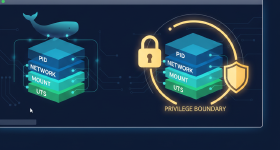
A namespace is a kernel feature that gives a process its own isolated view of a specific type of system resource. When you place a process in a new namespace, it can no longer see the resources in the host (also called the parent namespace) – to that process, it looks like it has that part of the system to itself.
The kernel provides several namespace types, each responsible for isolating a different resource:
Docker uses most of these every time you start a container, but you don’t have to take Docker’s word for it. The unshare command lets you create namespaces by hand right from the shell, so you can see exactly what each one does.
A PID namespace gives its processes a completely separate process table. Create one with sudo unshare to see what happens. The bash -c '...' syntax runs a series of commands in a new shell. For this example you’ll use $$, a special shell variable that expands to the current process’s PID:
1sudo unshare --pid --fork --mount-proc bash -c
2 'echo "My PID: $$"; echo "All processes I can see:"; ps -eo pid,user,comm'
My PID: 1 All processes I can see: PID USER COMMAND 1 root ps
Inside the new namespace, the process has become PID 1 and can see only itself. Every other process on the host is invisible. You might notice that ps is listed as PID 1 rather than bash. When bash -c reaches its last command, it replaces itself with that command – a standard optimization. In longer scripts, bash stays as PID 1 and you’ll see both processes (as in the DIY container example later).
There are three flags with unshare that make this work:
The UTS namespace lets a process have its own hostname without changing the one the rest of the host sees:
1echo "Original hostname: $(hostname)" 2sudo unshare --uts bash -c 'hostname container-demo; echo "Inside namespace: $(hostname)"' 3echo "After namespace exits: $(hostname)"
Original hostname: runnervm727z3 Inside namespace: container-demo After namespace exits: runnervm727z3
The hostname was changed to container-demo inside the namespace, but the host kept its original name. When you run a Docker container and notice it has a hostname like a3f92b1c8d (its container ID), this is the mechanism Docker uses to set that value.
A new network namespace starts completely empty – nothing but an inactive loopback interface. The ip -brief link show command lists all network interfaces in a compact format:
1echo "=== Outside namespace ===" 2ip -brief link show 3echo "=== Inside network namespace ===" 4sudo unshare --net bash -c 'ip -brief link show'
=== Outside namespace === lo UNKNOWN 00:00:00:00:00:00 <LOOPBACK,UP,LOWER_UP> eth0 UP 7c:ed:8d:62:f6:04 <BROADCAST,MULTICAST,UP,LOWER_UP> enP35855s1 UP 7c:ed:8d:62:f6:04 <BROADCAST,MULTICAST,SLAVE,UP,LOWER_UP> docker0 DOWN 46:86:94:ee:f8:c1 <NO-CARRIER,BROADCAST,MULTICAST,UP> === Inside network namespace === lo DOWN 00:00:00:00:00:00 <LOOPBACK>
The host has several network interfaces. In this case, lo is the loopback, eth0 is the main network adapter, enP35855s1 is a hardware interface specific to the Azure VM environment, and docker0 is a virtual bridge interface that Docker creates on the host. You’ll see different interfaces on your own machine. Inside the network namespace, only an inactive loopback device exists – there is no path to the outside network at all.
When Docker gives a container network access, it creates a virtual ethernet pair (two virtual network interfaces connected like opposite ends of a pipe): one end lives in the container’s network namespace, the other in the host’s. This is why the isolated namespace you just saw had no connectivity – no veth pair was created to bridge the gap. Creating this pair or configuring the network namespace requires privileged access.
The mount namespace gives a process its own view of what is mounted where. Any filesystem mount made inside the namespace is invisible from outside – even while the namespace is still running. To prove this, the following example backgrounds the namespace process (with &), waits a moment for the mount to be created, checks from the host, and then waits for the namespace to finish (with wait):
1sudo unshare --mount bash -c ' 2 mkdir -p /tmp/ns-test 3 mount -t tmpfs tmpfs /tmp/ns-test 4 echo "secret data" > /tmp/ns-test/secret.txt 5 echo "Inside namespace - file contents: $(cat /tmp/ns-test/secret.txt)" 6 echo "Inside namespace - mount visible: $(mount | grep ns-test)" 7 sleep 5 8' & 9sleep 1 10echo "Outside namespace (while namespace is still alive): $(mount | grep ns-test || echo 'not found')" 11wait
Inside namespace - file contents: secret data Inside namespace - mount visible: tmpfs on /tmp/ns-test type tmpfs (rw,relatime,inode64) Outside namespace (while namespace is still alive): not found
The mount -t tmpfs tmpfs /tmp/ns-test command creates a tmpfs – a temporary filesystem that lives in memory and disappears when unmounted. The -t tmpfs part specifies the filesystem type; the second tmpfs is the conventional device name used for memory-backed filesystems (it looks redundant but is correct syntax). The key detail is timing: the outside check runs while the namespace process is still alive (sleep 5 keeps it running). The mount isn’t missing because the namespace exited and cleaned up – it’s missing because the host never saw it in the first place. This is how Docker gives each container its own isolated root filesystem: the container’s entire file tree is a mount that only the container can see.
Namespaces control what a process can see – its own process table, its own hostname, its own network stack. But visibility is only half the story. Even if a process is isolated in its own namespace, nothing stops it from consuming all the CPU (Central Processing Unit) time, allocating all available memory, or saturating the disk with writes. That’s where cgroups come in. While namespaces isolate a process’s view of the system, cgroups limit what a process can use.
These are two complementary kernel features. The namespace types listed earlier included a “cgroup namespace,” which isolates a process’s view of the cgroup hierarchy (a tree structure the kernel uses to organize processes into groups). That’s a namespace concern. What you’re about to see is the core cgroup functionality itself: the kernel mechanism that enforces resource limits like CPU, memory, and I/O. Docker uses both, but they solve different problems.
The original cgroups used separate hierarchies for each controller. Modern Linux systems use cgroups v2, which unifies all resource controllers under a single hierarchy. Cgroups v2 exposes its hierarchy as a virtual filesystem mounted at /sys/fs/cgroup/. You can confirm this is mounted by using the mount command without arguments. This lists all active mounts. Then, pipe the output through grep to filter for cgroup entries:
1mount | grep cgroup
cgroup2 on /sys/fs/cgroup type cgroup2 (rw,nosuid,nodev,noexec,relatime,nsdelegate,memory_recursiveprot)
The cgroup2 type tells you this is the v2 interface. The directory contains files that control resource limits for groups of processes:
1ls /sys/fs/cgroup/
cgroup.controllers cpu.stat memory.numa_stat cgroup.max.depth cpuset.cpus.effective memory.peak cgroup.max.descendants cpuset.mems.effective memory.pressure cgroup.pressure init.scope memory.reclaim cgroup.procs io.cost.model memory.stat cgroup.stat io.cost.qos memory.swap.current cgroup.subtree_control io.pressure misc.capacity cgroup.threads io.prio.class misc.current cgroup.type io.stat pids.current cpu.pressure memory.current pids.max cpu.stat.local memory.max sys-kernel-config.mount
Don’t worry about most of these files – there are many because the kernel tracks a lot of details. The ones that matter for this article are memory.max (sets a hard memory limit for processes in the group) and cgroup.procs (lists which process IDs belong to the group). You’ll use both directly in a moment. Every process on the system belongs to a cgroup. You can see your current shell’s cgroup membership:
1cat /proc/self/cgroup
0::/user.slice/user-1001.slice/session-1.scope
The 0:: prefix is the cgroups v2 format. The path after :: is where your process sits in the hierarchy – in this case, a session scope under a user slice (systemd’s terms for grouping processes by user and login session). The kernel automatically organizes processes into this tree.
Creating a new cgroup is as simple as making a directory under /sys/fs/cgroup/. Setting a resource limit means writing a value to one of the control files that the kernel automatically creates inside that directory:
1sudo mkdir /sys/fs/cgroup/demo-group 2echo "50M" | sudo tee /sys/fs/cgroup/demo-group/memory.max 3cat /sys/fs/cgroup/demo-group/memory.max
50M 52428800
The tee command writes 50M (50 mebibytes, abbreviated MiB) to the memory.max file via sudo, because the file is owned by root. You might wonder why not just sudo echo "50M" > file – the > redirect runs in your unprivileged shell rather than under sudo, so it would be denied. Piping through sudo tee ensures the write itself runs with elevated privileges. When you read it back, the kernel shows the value in bytes: 52,428,800 (which is exactly 50 × 1,048,576). Any process assigned to this cgroup will be killed by the kernel’s out-of-memory (OOM) handler if it tries to use more than 50 MiB of memory.
正文由 探How 从来源站点 RSS 同步,内容未经改写;遇到排版缺失或需要图片、视频时请以原文为准。