Cleanyourtv.ai
Clean Your TV with guided ad and preinstalled-app cleanup. Add a home screen you love, beautiful wallpapers and useful apps. Start with a free check on Mac, Windows or Android.
以下正文同步自 Hacker News 最新,版权归原站所有,已转换为易读排版。
Clean Your TV with guided ad and preinstalled-app cleanup. Add a home screen you love, beautiful wallpapers and useful apps. Start with a free check on Mac, Windows or Android.
macOS · Apple siliconApple notarized↓macOS · IntelApple notarized↓WindowsWindows 10/11 · 64-bit↓Android phoneInstall on your Android phone↓
CleanYourTV.AI is built on the open-source CleanYourTV project. Thanks to Gathin (Gathin23) and the community contributors. Independently developed; not the official project.
Clean Your TV. Make room for what you love.
Use the Mac app, Windows app or Android app to Clean Your TV. No coding assistant or repository setup is needed.
Clean Your TV from a Mac, a Windows PC or an Android phone. Choose your app, sign in and open the guided TV setup.
Before you Clean Your TV, connect both devices to the same home network. Follow the on-screen guide, enable TV debugging and approve the connection on your television.
Clean Your TV with a plan you can review. Inspect detected apps, choose supported changes or a new look, then confirm in the app. Local records keep a way back.
macOS · Apple silicon
Apple notarizedM1, M2, M3, M4 and newer Macs
macOS · Intel
Apple notarizedIntel-based Macs
Android phone
Install on your Android phoneDownload Android app↓
Download without signing in. Sign in inside the app to manage your account and Plus.
4 downloads. 30 interface languages. One account for your devices.
Download the Windows installer from cleanyourtv.ai, then follow these steps.
If no continue option is available, send a screenshot to our support team. Contact support ↗
CleanYourTV.AI brings setup, your account and a growing TV library into one guided experience.
Clean Your TV with a guided desktop app. The original project's computer guide uses a coding assistant and a repository checkout. Our Mac and Windows apps put connection, inspection and reviewed changes in one interface.
Clean Your TV with instructions for your model, readable app descriptions and an AI setup assistant. Ask with text or a TV-screen photo, and request human help if you get stuck.
Keep finding new ways to Clean Your TV. We will continue adding apps, wallpapers and TV home-screen themes. New catalog choices sync to the companion; you preview them and choose what to apply.
Clean Your TV through our independent service, built on the free open-source project. The original project also links to a community Android app.
Clean Your TV, then make it yours. Apps, wallpapers and home-screen themes you can actually apply.
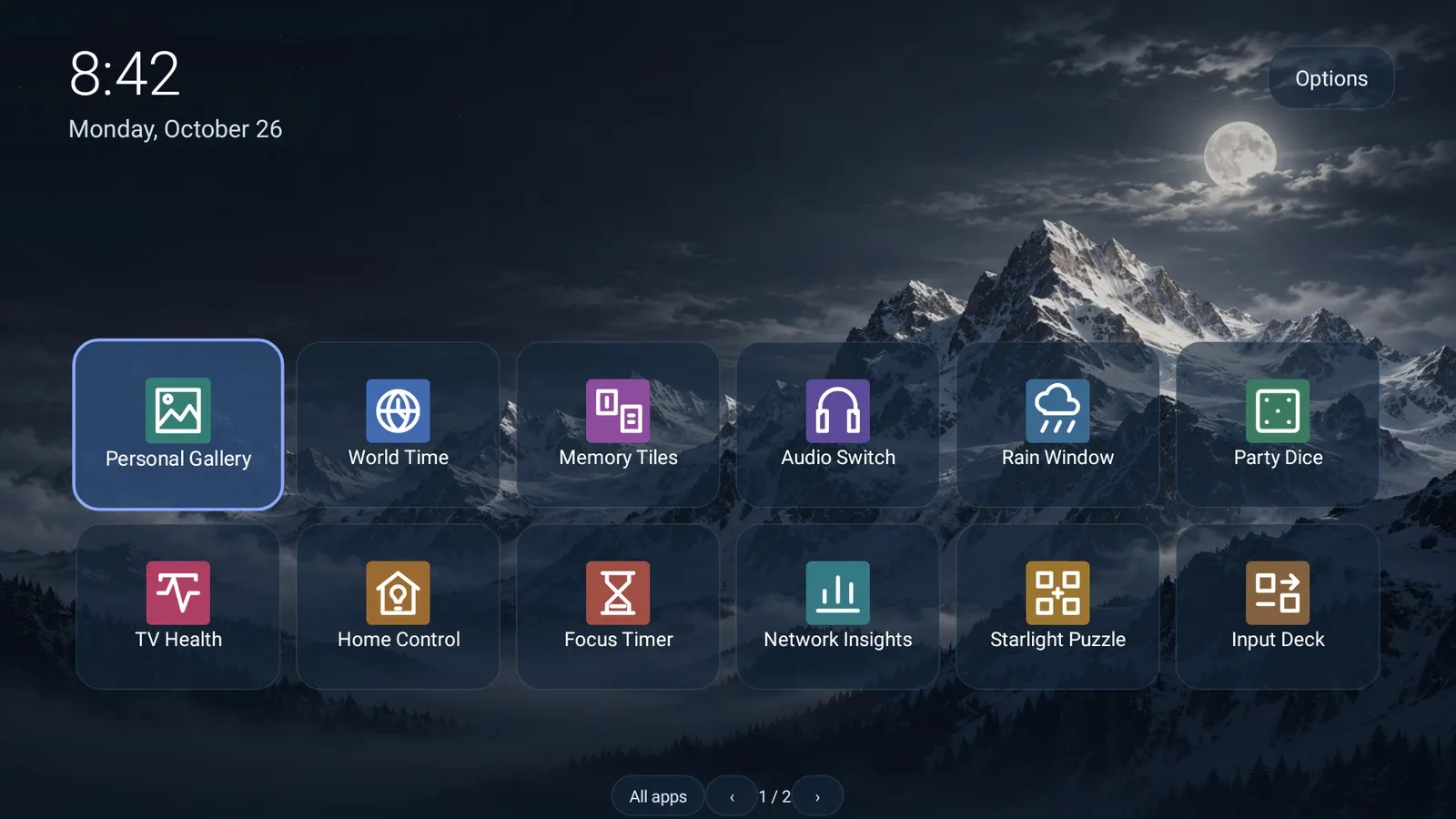
Clean Your TV with an app wall, spacious rows or a compact dock. Keep real installed apps and clear remote navigation within reach.
Clean Your TV, then add something fun: memory games, puzzles, timers and useful tools. Choose our apps and adaptations of licensed community projects.
Clean Your TV with a fresh background: space scenes, landscapes, painterly art or playful characters. Preview first, then apply with an optional clock screensaver.
Clean Your TV with coordinated wallpaper, a live clock and a new app arrangement. Themes style our TV home; the manufacturer’s system menus stay separate.
When you Clean Your TV, review the recognized advertising components it actually has. Support for startup, home-screen and idle-screen ads varies by model. Ads inside streaming videos are not removed.
Choose supported preinstalled apps and background extras to switch off. Clean Your TV without removing the services you use. Review each effect before confirming.
Clean Your TV with supported privacy controls. Review ACR and analytics components that may collect viewing data. Availability varies by model and firmware; no tool stops every form of tracking.
Clean Your TV while keeping streaming, HDMI, voice controls and casting features you use. Essential components and system updates remain protected in our companions.
Undo the last action or restore the changes recorded on this device. Clean Your TV with local recovery records, kept before changes begin. Recovery remains free.
Clean Your TV, then give it a look you love. Pick a look in the companion and apply it to your TV.
Runtime previews in a test environment. Our adapted apps retain the authors and licenses of their open-source foundations. Available features depend on your TV.
Clean Your TV with clear directions for its menus. Follow the guide to find the address, allow the connection and inspect the result.
To Clean Your TV, open Settings → Network & Internet → connected Wi-Fi or Ethernet → IP address. Some TVs use About → Status. Copy the IP or IPv4 address, not the subnet mask, gateway, DNS or Wi-Fi name. Do not change Manual settings or press Save. Android can also discover nearby TVs.
Xiaomi / Redmi MIUI TV: Settings → About → Product model, press OK seven times; then Settings → Account & security → ADB debugging → Allow. Press Home to leave Settings, then connect from the companion and approve the popup on the TV home screen. Android / Google TV: About → Build, press OK seven times; then enable debugging in Developer options. Keep both devices on the same home network and choose Allow on the TV when prompted. The Android companion also guides supported wireless pairing.
Before you Clean Your TV, inspect its installed apps, home screen and screensaver. Reviewed choices depend on the exact model, firmware and components found. Unrecognized apps remain visible and read-only; do not select a similar model.
Menu names vary by brand and firmware. The desktop companion uses network ADB; if your TV requires a wireless pairing code, use the Android companion’s pairing flow.
Before you Clean Your TV, check the operating system, firmware and connection requirements. The brand alone does not establish compatibility.
Clean Your TV on compatible Android TV and Google TV sets across Sony, TCL, Hisense, Philips, Sharp, Xiaomi, NVIDIA and other brands. Available choices depend on detected components, firmware, region and network debugging.
Some cleanup operations are available. Changing the default home screen is restricted on many models.
Tizen, webOS and Roku OS are not supported by this Android-based cleanup tool.
See installed apps, advertising components and the current screensaver before choosing a change. An unreadable check is shown as unavailable, not as proof that the TV has no ads. Essential and unreviewed components stay protected. We do not remove ads inside streaming videos, unlock paid content, or guarantee faster performance.
Clean Your TV for free with connection, inspection and supported privacy controls. Plus adds supported ad cleanup and TV customization. All three plans include the same Plus features.
Billed $4.99 every month. Renews monthly until canceled.
Billed $39.99 every year. Renews yearly until canceled.
One payment. Lifetime Plus access. No renewal or recurring charge.
Features depend on your TV. AI help has daily limits. Restore stays free.
Answers about setup, ads, apps and keeping a way back.
Clean Your TV with our guided companions, curated library and support. CleanYourTV.AI is independent of Gathin’s CleanYourTV open-source project, which remains available free under its license. We credit its authors; we are not the official project.
Before you Clean Your TV, run a free check. Support depends on Android TV, Google TV or supported Fire TV firmware and detected components. Samsung Tizen, LG webOS and Roku OS are different systems. Paying does not unlock an unsupported model.
Clean Your TV over your home network without rooting or flashing it. Use Mac, Windows or an Android phone. The TV must allow a supported ADB connection; your companion guides that connection and keeps a local restore record.
To Clean Your TV, copy the TV’s IP or IPv4 address from its connected network’s settings. Use the same home network, enable debugging and accept the TV authorization prompt. Guest networks and VPNs can block access. Use Android pairing guidance when a pairing code is required.
To Clean Your TV on some MIUI models, open Settings → About, select Product model and press OK seven times. Enable ADB in Account & security, return to the TV home, then connect and approve the popup. Xiaomi Google TV models use the Google TV guide.
When you Clean Your TV, only recognized, supported system-ad, recommendation and screensaver components can be disabled. Results vary by firmware and region. This does not remove ads inside YouTube or other streaming videos, unlock paid subscriptions or guarantee faster performance.
Clean Your TV using inspected components, not guesses. Some manufacturer idle screens use private services. The installed-app inventory includes protected and unreviewed apps; unavailable checks do not mean no ads exist. Try a supported clock screensaver, without assuming it replaces every manufacturer idle screen.
Clean Your TV and change its look as separate choices. Cleanup disables only the supported components you select. A home-screen theme changes wallpaper and app arrangement. You can use either feature independently; review the plan before applying it.
After you Clean Your TV, read the results list. Confirmed changes have readable app names; skipped and unconfirmed items remain separate. A timeout is not proof of success. Keep your local restore records and reconnect if the companion asks you to verify the TV.
Clean Your TV while keeping the services you use. Essential and recognized system components stay protected, but firmware dependencies differ. Some shortcuts must use the manufacturer’s own settings menu. A casting monitor reports discovery; it does not add an AirPlay receiver.
You can Clean Your TV with a fresh wallpaper while keeping your app order, layout, clock and dock settings. Choose a home-screen theme when you want a different arrangement. The optional clock screensaver can use that wallpaper too.
After you Clean Your TV, use Left and Right to scroll app bars or change grid pages. All apps lists detected launchable apps. The home refreshes after installations and removals, so newly installed apps are not limited to the first visible shortcuts.
Clean Your TV, then explore games, clocks, photo galleries, timers, wallpapers and home themes. Our apps and licensed open-source adaptations include source credits. Preview for free; Plus enables supported installation and application. Some tools still need your own photos, server or lawful media sources.
Clean Your TV with executable layouts, not just pictures. The companion applies a verified TV home app and configuration. Layouts use real installed apps and remote controls. Illustrations show intended designs; actual icons and language come from the TV. Runtime screenshots use a test environment.
After you Clean Your TV, opening a theme does not make it the default. If supported, choose Set as default TV home, test it and confirm before the countdown ends. Without confirmation, it reverts. Some manufacturers restrict or reset defaults; reopening the saved theme remains available.
Clean Your TV with a way back by keeping your companion’s local records. Recovery remains free after canceling Plus: undo the last action or restore the recorded starting state. This is not a factory reset. Missing records and updates to existing apps may limit recovery.
Clean Your TV for free with connection, model checks, inspection, supported privacy controls and Recovery. Plus adds supported ad and preload cleanup, wallpapers, themes and compatible app installation. All three plans include the same Plus features; purchasing does not add unsupported TV components.
Clean Your TV from Mac, Windows or Android using the same signed-in account. Plus access follows that account; Google and email sign-in are available. Purchases sync across companions, while local TV restore records stay on the computer or phone that performed the change.
After you Clean Your TV, you may turn debugging off; installed apps and the new home can keep run
正文由 探How 从来源站点 RSS 同步,内容未经改写;遇到排版缺失或需要图片、视频时请以原文为准。