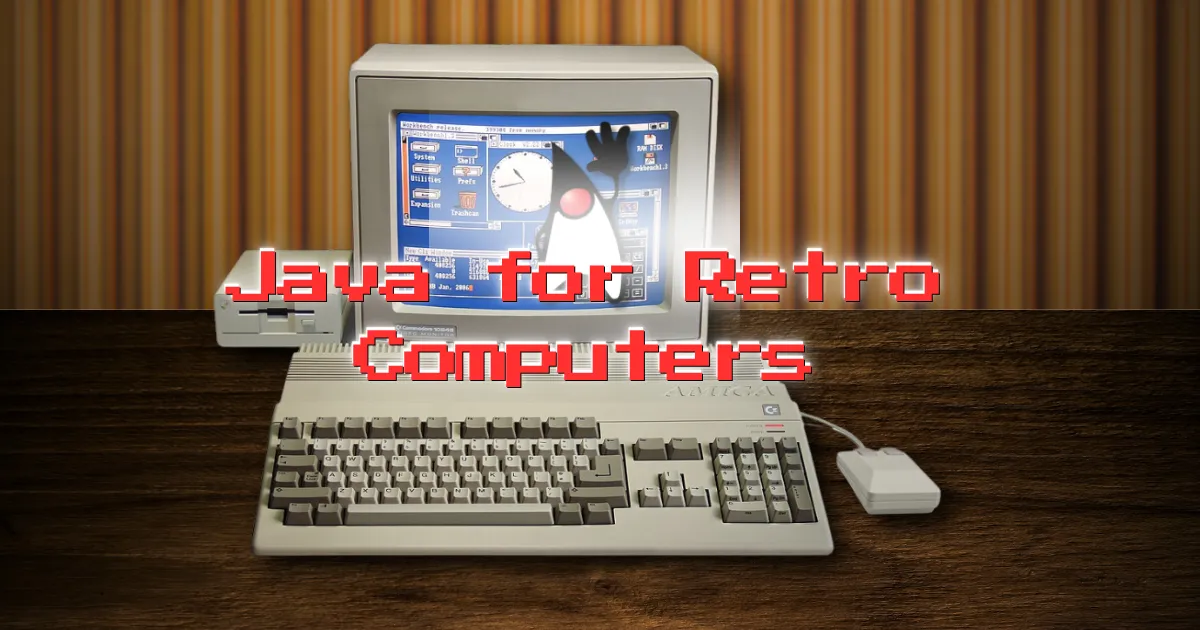
Write Once, Run Anywhere: Java for Retro Computers?
Java was meant to be “write once, run anywhere”. How does that hold up for retro programming?
以下正文同步自 Hacker News 最新,版权归原站所有,已转换为易读排版。
Java was meant to be “write once, run anywhere”. How does that hold up for retro programming?
Fully cross-platform, truly portable code has long been a dream of developers. Even now, it’s a key selling point of game development environments and tools such as Godot and GameMaker. But wind the clock back three decades and the problem was supposedly solved by a language called Java.
Java was even advertised as “write once, run anywhere”.
The idea for this article has been sat in drafts for over a year with no payoff. What changed was finding out that there was a way to code in Java for at least some retro machines, so the marketing claim finally gets to be tested on Windows XP, Commodore 64 and Amiga!
In my head, Java is still relatively new. Except it isn’t, it dates back to 1995 (the 90s is only 10 years ago, right?).
Back then I learned it because it was the big new thing, but directly afterwards I moved on to C# largely because there were only a few clients who used Java, and for them it was all JSP (Java Server Pages).
The goal behind Java was a fully object-oriented, memory-safe, truly cross-platform language. It is a compiled language, but javac compiles to bytecode rather than a native binary. The JVM runs that bytecode, interpreting it at first and compiling the busiest parts to native code as the program runs. That is how it stays portable without being slow.
Since then it has become a successful programming language in the enterprise, and a plethora of non-PC devices, which means everything from phones to set-top boxes. As a result, billions of devices run Java natively, even today.
You can now follow the tutorials and edit the code right in your web browser with the Online Retro IDE
– No downloads, configuration, etc necessary, and it is free!
One source of confusion for people getting into Java is the three-letter acronym components of Java development: the JRE, JVM, and JDK. Partly the confusion comes from developer communities specifying that you need a specific or updated version of one or more of these elements, so it is worth knowing what each is for and how they interrelate.
Java Runtime Environment (JRE): The JRE is necessary for executing traditional Java programs. It includes the Java Standard Library, which provides essential classes and files like java.lang, java.util, java.io, and java.sql, among others. The JRE also contains the Java Virtual Machine (JVM), which executes Java programs by loading class files into memory and ensuring smooth operation across different platforms with automatic memory management and security checks.
Java Virtual Machine (JVM): The JVM is part of the JRE and is responsible for executing Java programs. It handles platform compatibility, memory management, garbage collection, multithreading, and security checks, ensuring the program runs efficiently without requiring modifications for different operating systems.
Java Development Kit (JDK): The JDK is, as the name suggests, essential for developing Java programs. That means creating, modifying, compiling, debugging, testing, and running Java. It includes the JRE (and thus the JVM), the Java compiler (javac), and the source code for Java standard libraries. It also provides tools for debugging, monitoring, and managing Java applications, such as creating jar files. The JDK is comprehensive, containing many tools and resources that may not always be used but are available when needed.
Basically, the JRE is all you need for running Java programs, the JVM is bundled in the JRE and executes them.
The JDK provides the necessary tools for developers to use Java in their applications. This is what you will need to grab if you want to get your hands dirty with Java. Oracle stopped offering a separate JRE download after Java 8, so for anything modern you just install a JDK.
You might think having Java compile to a byte code executed by the JVM rather than “to the metal”, performance might take a huge hit?
The Java community has put a LOT of effort into performance over the years, which means it is no laggard. You get quality of life user experience, extremely robust security, along with top 5 raw performance …
💬 Questions or comments? Head over to the community to discuss!
On a C64 there is no JVM, so how can we execute Java programs there?
Enter Java Grinder, which goes the other direction and takes your intermediate language byte code and compiles for the hardware, ahead of time rather than at run-time.
Java Grinder needs a JDK, as usual, but only for javac. It reads the .class files the compiler produces, and nothing from the JRE ends up on the C64 or Amiga.
Not sure if you have Java? You can see what you have installed from a terminal using:
Versions up to Java 8 only understand the single-dash java -version, which still works on new ones too.
Open (GPL) builds are available at JDK.Java.net and not open but free-to-use installers are available from Oracle.
On Linux, you can usually install the Open version of the JDK using your package manager, eg.
Visual Studio Code has an Extension Pack for Java that is very helpful for getting up and running real quick with a nice (and free!) development environment, but you do not need an IDE necessarily.
For my Windows XP box, described in full below, I grabbed a relatively period-correct version from Archive.org, mainly because the Oracle website didn’t play nice with my installed web browsers.
Open your text editor and create a new file, calling it something like hello.java:
public class hello {
public static void main(String[] args) {
System.out.println("Hello World!");
}
}
Now compile either with your IDE or using the terminal:
You should see a new file called hello.class
Then, if all goes well, you should be able to run it:
java hello (where hello is the name of the class that was generated above)
Note that Java is case-sensitive, which means if you called it Hello.java or if your public class was named Hello then both need to match!
I’ve used lower case here to keep the typing simple, but the Java convention is to start class names with a capital letter (Hello.java containing class Hello), and that’s what you’ll see in most examples, including Java Grinder’s own samples.
Class: Java is object-oriented, so it organises code and allocates memory around classes. For now just think of a class as a container, and in our case our hello class gets a ‘method’ (function) added called main.
Public: The main method is public so that the Java Runtime Environment (JRE) can access and call it from outside the class. If it were private or protected, the JRE wouldn’t be able to run it.
Static: The main method is static because it needs to be called on the class itself. This allows the JRE to execute the method without creating an object of the class.
Void: The main method has a return type of void because it does not need to return any value. Once the method completes its execution, the program ends without returning anything. You might note that in C or BASH we might want to return a number indicating everything was ok or that there was an error number generated.
Main: The method must be named main because the JRE specifically looks for this name to start the program. This is a convention that has to be followed.
String[] args: This is an array of strings so that you can pass arguments to the program at runtime.
Static is everywhere on the retro targets, since Java Grinder programs are mostly static methods, ints and arrays.
Newer versions of Java mean you do not need all those lines or even to compile before running. Since Java 11 you can run a source file directly with java hello.java, and since Java 25 (September 2025) the class around main is optional too. Java 21 to 24 can do it with --enable-preview:
void main() { System.out.println("Hello World!"); }
I am in two minds about this, though, for anyone actually wanting to learn Java versus just see code running because those OOP aspects are really important to understand …
The Pentium III launched in February 1999, right in Java’s boom years. Sun’s JDK 1.2 came out in December 1998, 1.3 in May 2000 and 1.4 in February 2002, so these are the PCs Java grew up on.
Modern Java is out of reach, of course. Current OpenJDK releases have dropped the 32-bit x86 port.
I picked Java SE 6, released 11 December 2006, so it turns 20 this year. Last public update was 6u45 in 2013, and the 32-bit Windows installer is jdk-6u45-windows-i586.exe, 69.9 MB.
Sun’s stated minimum for Java 6 was a Pentium 166 MHz with 64 MB of RAM, so the Pentium III is pretty comfortable.
I am running Windows XP, which coincidentally launched on 25 October 2001, so it just turned 25! The machine runs at 1024 x 768 over Remote Desktop from my Mac for screen captures, and a BenQ monitor via VGA for actual use.
The standard advice is to download Java from Oracle’s Java SE 6 archive page but on XP in New Moon browser the page greys out behind a cookie banner that never finishes loading. Then Oracle’s bot detection hangs the browser.
Fortunately, Internet Archive’s plain download listing works fine on XP: archive.org/download/java-se-jdk-6u45. It’s the same installer, uploaded in August 2022.
70 MB only took a couple of minutes even over my Pentium’s 10 Mbit/s networking.
The installer puts in the JDK, then a second “Java Setup” stage for the public JRE, complete with Oracle’s “3 Billion Devices Run Java” banner, the same slogan Michael Kohn’s Amiga demo opens with.
The public JRE adds the Java browser plugin. New Moon flags both Java plugins as known to be vulnerable, and I set them to Never Activate in Tools > Add-ons > Plugins. The JDK is fine for compiling and running my own programs.
The installer puts java on the PATH but not javac. I added C:\Program Files\Java\jdk1.6.0_45\bin to the system Path in My Computer, Properties, Advanced, Environment Variables.
A new Command Prompt then shows Java 1.6.0_45 and javac 1.6.0_45, running on the HotSpot Client VM in “mixed mode, sharing”: interpreted first, hot code compiled to native as it runs, and class data sharing to start up faster. Client VM is what Java 6 picks on a single CPU 32-bit machine.
java -version and javac -version reporting 1.6.0_45 in a Windows XP Command Prompt
Just to prove the same code that worked on Mac works on Windows XP:
I was kind of hoping I would be able to tell you “Just compile the .class and run it on your C64”, but that is not the case.
Java was developed with 32 bit and higher processors in mind, but that didn’t stop the community. Several unofficial ports of the Java virtual machine exist on lots of platforms never intended to get Java, but there are also compilers that take the byte code and make native executables.
One of those is the aforementioned Java Grinder, an ahead-of-time compiler. It takes the .class bytecode javac produces and turns it into assembly for a real CPU, which is then assembled to a native program. No virtual machine runs on the target.
Target machines include: Amiga, Apple IIgs, Atari 2600, ColecoVision, Amstrad CPC, Commodore 64, Intellivision, MSX, NES, Nintendo 64, PlayStation 2, Sega Dreamcast, Sega Genesis, SNES, TI-99/4A, TRS-80 CoCo, and more stuff that is less relevant to us here but still interesting such as microcontrollers.
Java Grinder was written by Michael Kohn (also the author of the naken_asm assembler, and of the Amiga demo featured), with Joe Davisson responsible for the 6502 code generator, the C64 platform and the 65816 side, and Carsten Dost listed as the third author.
You can get the code from GitHub at mikeakohn/java_grinder and mikeakohn/naken_asm. There are zip files on his web page too, but they are source code (from 2023, so older than GitHub) and still need compiling. naken_asm does have a ready-made binary for Apple Silicon Macs on its own page.
Both projects build with make. The extra make java step builds JavaGrinder.jar, the API
正文由 探How 从来源站点 RSS 同步,内容未经改写;遇到排版缺失或需要图片、视频时请以原文为准。