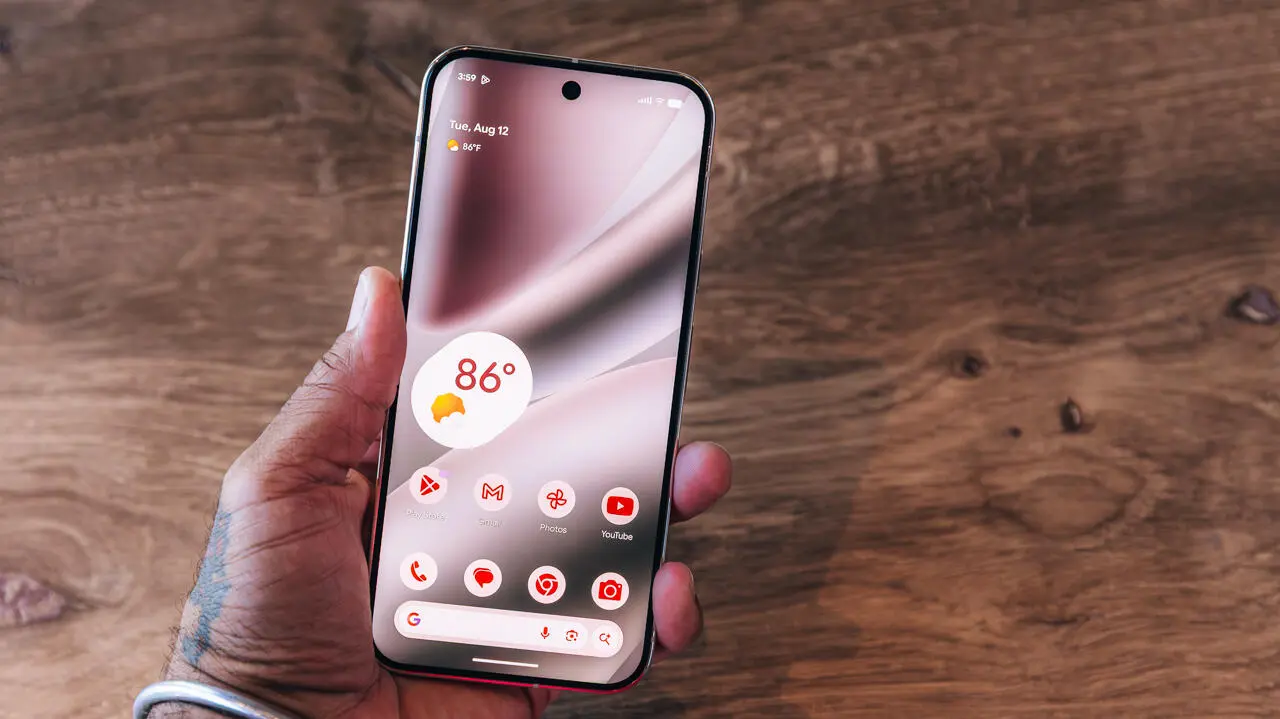
Android lets you ‘bubble’ apps for easy access now – how it works
Keep your most-used apps accessible with this new feature.
以下正文同步自 ZDNet AI,版权归原站所有,已转换为易读排版。
Tech > Services & Software > Operating Systems > Mobile OS > Android
Keep your most-used apps accessible with this new feature.
Read full bio
October 23, 2026, 12:28 pm ET
Several years ago, Android introduced the ability to “bubble” a text conversation, or move that app to a floating bubble on your home screen. It’s a convenient way to keep a conversation easily accessible.
As part of the Android 17 rollout, users got the option to use app bubbles. When you bubble an app, it sits on top of everything else on your screen, making it easy to access when you need it. You can place up to five apps in your bubble.
Also: This hidden Google Messages setting will stop you from texting the wrong person
A bubble only saves a tap or two each time you use an app, but it’s a fantastic multi-tasking tool if you have a handful of apps you use often. You could do something similar to this before, but only for Google Messages and Facebook Messenger chats.
The ability to bubble an app on Android is starting as a Pixel exclusive, but the feature will come to other manufacturers over time. There is an existing, similar feature for Samsung called Smart Pop Up View, and instructions for that are below.
To get started, choose the app you want from either your app screen or your home screen.
Press and hold on the app until a pop-up menu appears.
The menu will show options like App info, Add app to home screen, or Pause app. Select the Bubble option.
Your selected app will shrink to an icon that you can move around your home screen. You don’t have the freedom to place it anywhere, but it can go anywhere along the left or right side of your screen. The app will stay on top of everything else on your screen, and you can bubble multiple apps at once, but they will always move together.
Samsung has a similar feature called Smart Pop-Up View that lets you respond to notifications on selected apps without leaving the app you’re in. You might need to enable your “Multi window for all apps” setting first.
Navigate to your settings app, open it, and select Notification Settings.
Once you’re in advanced settings, find and choose Floating Notifications. Then select Smart Pop-Up view.
Now just select which apps you want to have priority.
Log In to Comment
Log Out
Community Guidelines
Please accept cookies to view the comments powered by Disqus.
正文由 探How 从来源站点 RSS 同步,内容未经改写;遇到排版缺失或需要图片、视频时请以原文为准。