WhatsApp Appointment Booking with Calendly and AI
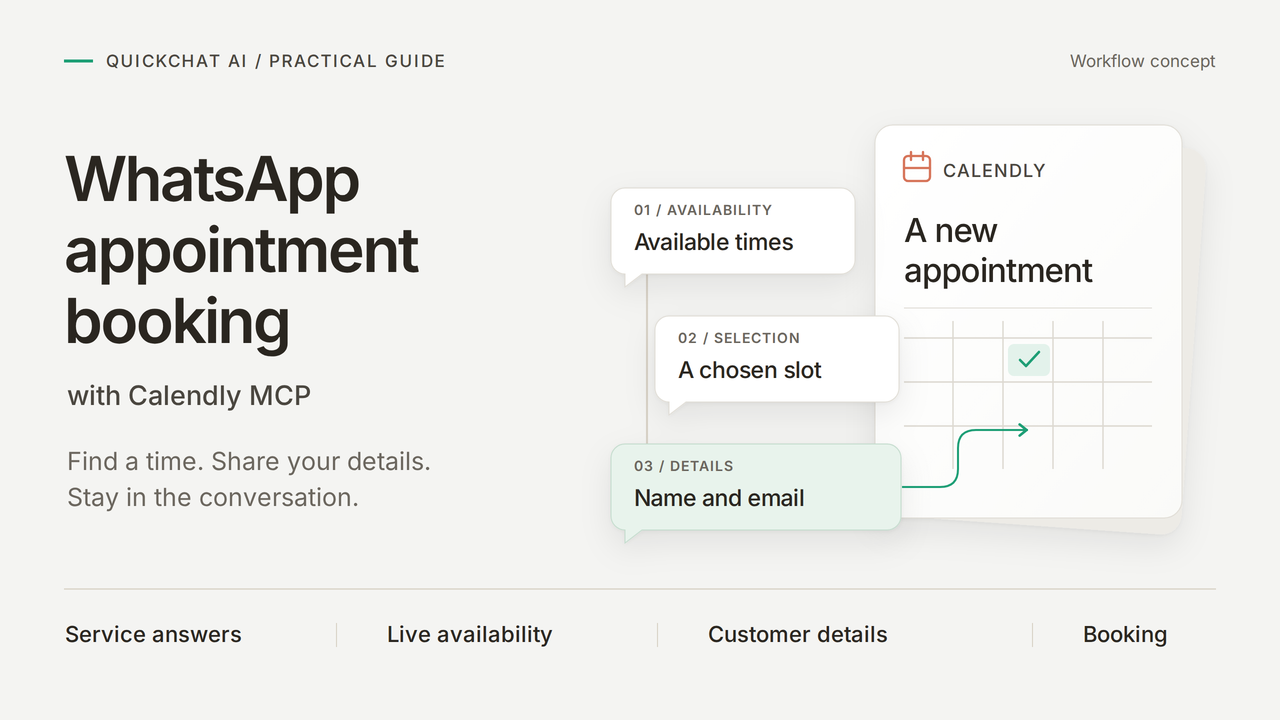
Build a WhatsApp appointment booking assistant that answers a bicycle-repair question, offers live times and creates a confirmed appointment in Calendly. The customer asks about the service, chooses a time and supplies …
以下正文同步自 Hacker News 最新,版权归原站所有,已转换为易读排版。
Build a WhatsApp appointment booking assistant that answers a bicycle-repair question, offers live times and creates a confirmed appointment in Calendly. The customer asks about the service, chooses a time and supplies their details in the same WhatsApp conversation.
The example is Harbor Cycle Workshop, a fictional business offering a free 15-minute Repair assessment. In our controlled WhatsApp test, the customer selected 10:00 on 27 October 2026 in Europe/London. The delivered confirmation matched the appointment in Calendly, from 10:00 to 10:15.
Real mobile WhatsApp screenshots. The confirmation matched the independently checked Calendly appointment. Emails and personal link details are hidden; contact labels are standardized to the workshop name.
The customer completes three steps in WhatsApp:
You will build this in six steps: add the workshop knowledge, prepare the Calendly event, connect its tools, set the booking instructions, test the complete conversation and repeat it on WhatsApp. MCP (Model Context Protocol) is the connection that lets the Agent use Calendly’s availability and booking tools.
Download the Harbor Cycle Workshop kit for the exact Main Prompt, five source articles, Calendly setup, handoff text and test inputs. These are editable setup files, not a one-click import. The Main Prompt and knowledge sources also appear at the end of this guide.
Build and test in AI Preview first, then repeat the conversation on WhatsApp. To delegate part of the setup, use the optional ChatGPT or Claude walkthrough with the same kit.
Five short articles give the Agent its service facts while keeping prices, opening hours and bookable times distinct.
Use workshop knowledge for stable facts and Calendly for live times.
Paste the complete source into Content, then save it and check processing. The local editor shows the opening of the Services article.
The complete blocks are in the copyable knowledge appendix and the kit’s knowledge/ folder.
Leave stock, final quotes and completion dates to staff when adapting your own approved documentation.
Check the first result: once all five sources are Ready, ask “My bike has a puncture. How much might it cost, and what does the assessment cover?” in AI Preview. Look for the £12 starting labour price, parts charged separately, and an assessment that does not reserve repair work.
Create one Repair assessment event with a fixed duration, location and schedule. The Agent will use this event’s identifier for availability and booking.
Check the assessment’s name, duration and location on its public scheduling page. This is the real demonstration event.
The workshop opens at 09:00, but assessments start at 10:00. Calendly’s event schedule and connected calendar determine which appointments the Agent can offer.
The Calendly MCP connection gives the Agent named operations. Enable the reads needed to find the event and its times, then add booking only when the instructions and checks are ready.
Concept: WhatsApp carries the conversation; Quickchat AI answers service questions and uses Calendly to find times and create the appointment.
Choose Connect with Calendly to authorize the account. Real local setup screen.
Enable booking for Step 5; keep it off during initial setup. Cancellation and Default tool activation stay off. Local settings example.
Tool switches select the available operations. The Main Prompt specifies the workshop’s event, required customer details and when to book.
Before replacing the prompt’s two operator values, start a new AI Preview conversation with only the three read tools enabled. This setup request asks for event details, without checking times or creating an appointment:
Find the active Repair assessment event lasting 15 minutes in my connected Calendly account. Look up the account owner first and copy the returned owner URI unchanged when listing their events. Follow pagination if needed. Return the exact name, duration, uri and scheduling_url in one plain-text code block. Copy both URLs in full. If there is not exactly one match, stop and explain. Do not create, change or cancel anything.
Hover the reply and select Copy. Match the name, duration and public link against the event from Step 2. Keep the complete uri and scheduling_url for the two prompt settings below. If the lookup is ambiguous or fails, resolve that before enabling booking.
Use uri for tool calls and scheduling_url for the fallback page. Copy both complete values from the reply, including https://.
Expand meetings-create_invitee, even while its switch is off, to reveal Save to memory. Confirm these rows and Save:
Each JSONPath selects a response field; its memory key makes that value available to later messages. Local settings example.
After booking, “Can I change the time?” should return this appointment’s saved rescheduling link. Step 5 checks that exact value without another booking or an email lookup.
Use Europe/London for the workshop’s appointment times. Quickchat AI converts the local dates in code and returns labelled options. The Agent uses the customer’s selected option to book.
With both availability and booking enabled, the Calendly tools accept local dates and an explicit time zone. Quickchat AI handles UTC conversion and checks the selected slot again before submitting it to Calendly. The tool names remain the same.
A clear request for an offered time plus the required customer details is enough to proceed. If the request is tentative or unclear, the Agent asks for confirmation first. Quickchat AI matches the chosen instant against current availability and sends Calendly its original timestamp.
The Main Prompt joins the service facts and calendar tools into one conversation: check times, get a clear choice and the required details, book, then confirm the result. “I’ll take 10:00” with the customer’s name and email can complete the request. A tentative choice or missing detail prompts a question before booking.
Open Identity > Main Prompt and paste the complete Main Prompt, also supplied as main-prompt.txt in the kit. Replace NOT CONFIGURED only on these two setting lines:
Leave the later guard sentence unchanged. Main Prompt saves automatically; wait for saving to finish and reopen it to check the stored text. The fictional location appears in the knowledge, event and booking instruction. Update all three together for a real workshop.
Set the event URI and fallback booking link in Main Prompt, then check the saved values. Real local editor.
Open Actions & MCPs > Human Handoff, enable it and turn AI summary on. In Handoff Rules, use the plus control to add Workshop handoff, enable the rule and paste the following into Description:
Offer Human Handoff when the customer asks for a person; needs a final quote, parts availability or repair completion date; describes unsafe brakes, crash or frame damage, or an e-bike battery problem; or encounters a booking failure, uncertain booking result or problem with an existing appointment. Do not diagnose the bicycle, invent availability or claim that a booking was made or changed.
Set Question to:
Would you like me to pass this conversation to the workshop team?
Set Confirmation to:
Your conversation has been flagged for the workshop team to review. A member of staff can reply here when available. This handoff has not booked an appointment.
The Question asks before handing off; Confirmation explains that staff can reply and no appointment was booked. Local settings example.
Keep the explicit-user-request behaviour and Lack of knowledge enabled. Leave Human Agents’ availability unrestricted so customers can enter the queue while staff are offline. Use Email notifications only with a real monitored address; the fictional .example address cannot receive them. Save the settings.
Test this staff route after the booking conversation in Step 6.
Run the four service questions first, then complete one booking conversation in AI Preview. Check the appointment in Calendly before moving the conversation to WhatsApp.
Keep meetings-create_invitee off while checking the four service questions.
Open Testing to create or find the workshop dataset. Local configuration example.
My bike has a puncture. How much might it cost, and what does the assessment cover?
Are you open on Monday? Can I bring my bike on Saturday?
Do you have my inner tube in stock, and can you finish the repair tomorrow?
What should I bring to my Repair assessment?
Open the dataset, paste the following into Evaluation criteria, then Save:
Check service facts against the workshop knowledge. Puncture labour starts at £12 with parts extra. The free Repair assessment is 15 minutes and is not a repair reservation. Monday is closed. Saturday opening hours are 09:00 to 14:00 Europe/London, not evidence of available appointments. Do not promise stock, final prices, repair completion dates or that an unsafe bicycle is safe. Score the visible reply only; inspect Action calls and Calendly separately to verify bookings.
The four service questions in the local dataset, ready for its first run.
Each dataset item starts a fresh conversation. Use the continuous Preview test below for booking. The support-agent testing guide explains how to compare runs after an edit.
Read availability, establish the requested appointment and collect its details. Confirm the booking only after Calendly returns success.
After completing Steps 1–4 and the service checks, turn meetings-create_invitee on in Tools, Save, and start a new AI Preview conversation. Use a future date within the event’s booking range and an inbox you control.
Replace the bracketed instructions with your test values. Keep the full date and time zone explicit. If a detail is missing or the request is unclear, answer the Agent’s question before continuing; it should not invent a name, email or appointment choice.
Expand the called Action to inspect its inputs and result. Local fixture with a synthetic booking response.
Compare the selected date, time and zone with the provider record, then clean up the controlled test.
For the Action’s history, open Actions & MCPs and select View logs on Harbor Cycle Workshop appointments. Open the booking call and inspect Parameters sent for the event identifier, post_invitee_request.local_start_time and booking_timezone where they are visible. Match the call to its conversation before comparing it with the customer’s choice and details.
Choose View logs on the Action card to find its recorded calls. Local fixture.
Match the visible Parameters sent with the selected appointment. Local fixture with a synthetic booking request.
Open the appointment in Calendly for its full details and match them with the customer’s requested appointment. This table maps those details to their booking fields:
For “Can you send me the link to change the time?”, open Inbox > Details > Memory. Hover Calendly Reschedule Url, select Copy, and compare the complete value with the reply’s destination.
Open Memory and use Copy for the complete saved link. Local fixture with nonfunctional example URLs.
This checks retrieval of this conversation’s link. It does not establish that the customer completed a reschedule.
Use the full date, including the year, and Europe/London for this in-person appointment. London changes between British Summer Time and GMT, so the same clock time can correspond to different UTC times. Quickchat AI’s Calendly integration handles that conversion in code and books with the matching timestamp returned by Calendly.
The same London clock time corresponds to different UTC times before and after the clock change.
When reading the appointment in Calendly, account for its displayed time zone when comparing it with the customer’s chosen time. For a clock-change date, the availability query must cover the whole local day: its two midnight boundaries can be 23 or 25 hours apart. If an hour differs, correct th
正文由 探How 从来源站点 RSS 同步,内容未经改写;遇到排版缺失或需要图片、视频时请以原文为准。