Bringing Omarchy's Hyprland Workflow to macOS
I like macOS, but after seeing the keyboard-driven desktop in Omarchy, the standard macOS window workflow started to feel slow. Hyprland makes windows and workspaces feel like parts of one system: open something, put it…
以下正文同步自 Hacker News 最新,版权归原站所有,已转换为易读排版。
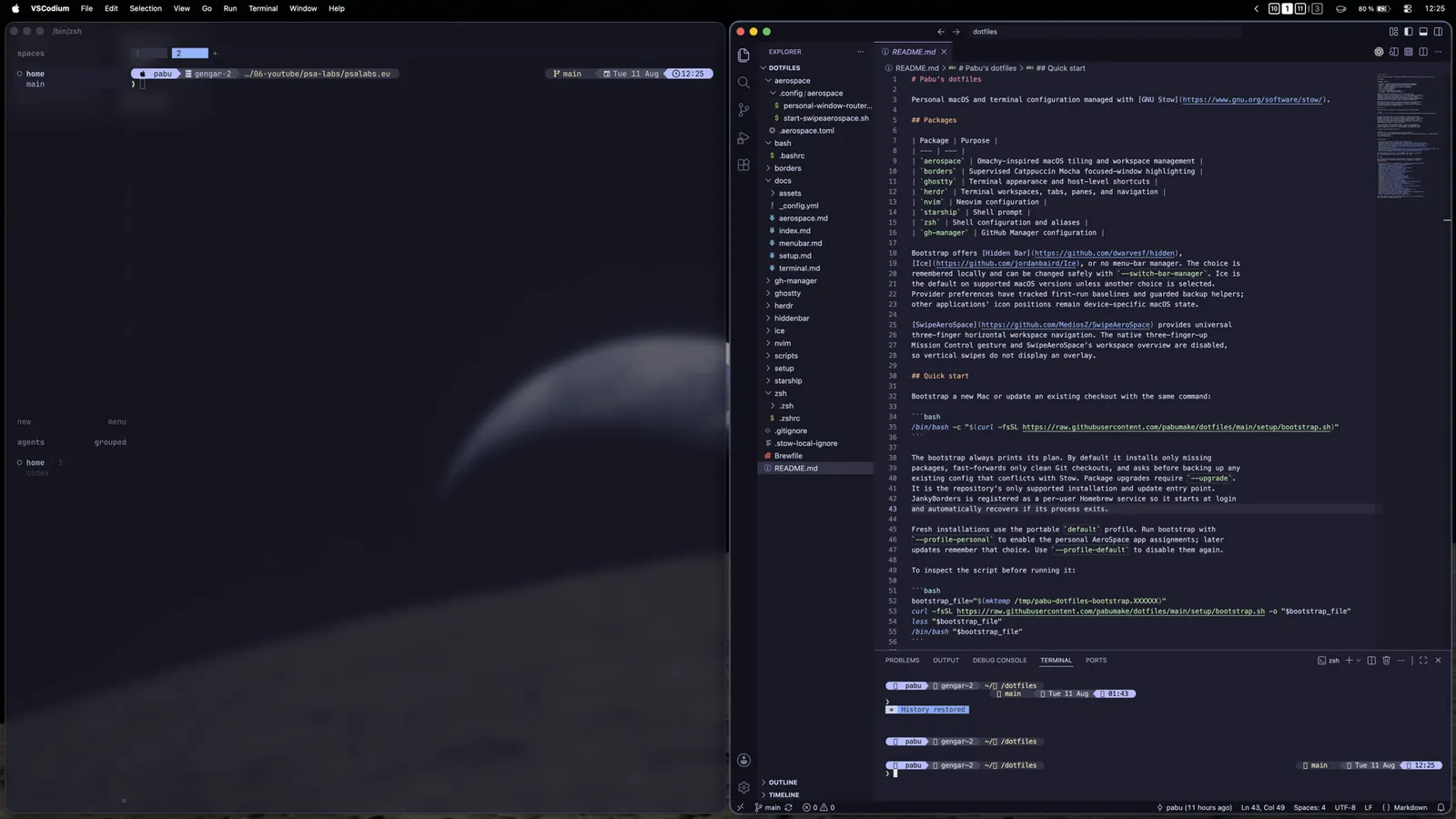
I like macOS, but after seeing the keyboard-driven desktop in Omarchy, the standard macOS window workflow started to feel slow. Hyprland makes windows and workspaces feel like parts of one system: open something, put it where it belongs, and move through the desktop without reaching for the mouse. I did not want to reproduce the whole Linux desktop on a Mac. I wanted to keep that behavior while still using macOS, its applications, and its hardware. My dotfiles now do exactly that with AeroSpace, a few focused companion tools, and one bootstrap command. From Omarchy to Omachy to AeroSpace There are three similarly named pieces in this story: Omarchy is the Linux setup whose Hyprland workflow caught my attention. Omachy is a macOS-oriented project from which I adapted the initial AeroSpace workflow. AeroSpace is the tiling window manager that actually provides the behavior on macOS. The result is not Hyprland running on macOS. AeroSpace is an i3-like tiling window manager that builds its own virtual workspace model on top of macOS. That distinction matters: the key ideas translate well, but native macOS Spaces and Hyprland do not behave in exactly the same way. The behavior I wanted to keep The most important part was not a theme or a collection of animations. It was the small set of rules that makes a tiled desktop predictable: New windows tile automatically. Window focus and movement use Vim-style directional keys. Numbered workspaces are available immediately from the keyboard. The same shortcut either focuses a window or, with Shift added, moves it. Gaps make the layout readable without wasting much screen space. Floating windows are the exception, not the starting point. The focused window is visually obvious. The trackpad changes workspaces instead of opening a second, unrelated workspace overview. These rules remove a surprising amount of friction. I no longer spend time dragging window edges, hunting for an application behind another one, or waiting for the animated macOS Spaces view when I already know where I want to go. How the macOS version works The current configuration uses nine persistent AeroSpace workspaces and a tiled root layout. The root orientation is automatic, so a wide display starts horizontally and a portrait display starts vertically. Every inner and outer gap is fixed at 8 pixels. System Settings and Calculator float by default because forcing small utility windows into the tiling tree usually creates more work than it saves. Everything else starts tiled but can be toggled when needed. This is the resulting two-column workflow on my Mac: Ghostty with Herdr on the left, VSCodium on the right, numbered AeroSpace workspaces in the menu bar, and the focused-window border keeping the active side obvious. Focus, move, and resize without the mouse In the AeroSpace configuration, alt means the macOS Option (⌥) key. Shortcut Action Option (⌥) + H/J/K/L Focus left, down, up, or right Option (⌥) + Shift (⇧) + H/J/K/L Move the focused window Option (⌥) + -/= Shrink or grow the focused window Option (⌥) + Shift (⇧) + M Move the window to the next monitor and follow it Option (⌥) + R Enter a dedicated resize mode Option (⌥) + Q Close the focused window Resize mode keeps the same directional language. H and L change width, J and K change height, and Enter or Escape returns to the normal mode. The 50-pixel increments are coarse enough to be fast and small enough to be useful. Numbered workspaces Shortcut Action Option (⌥) + 1–9 Switch to workspace 1–9 Option (⌥) + Shift (⇧) + 1–9 Move the focused window to workspace 1–9 Option (⌥) + Tab (⇥) Return to the previous workspace Option (⌥) + Shift (⇧) + Tab (⇥) Move the current workspace to the next monitor This is the part that changed my daily workflow the most. A workspace becomes a place I can address directly instead of a card somewhere in Mission Control. The optional personal profile adds predictable application homes: Application Workspace Initial layout Ghostty 1 AeroSpace fullscreen VSCodium 2 Tiled Zen Browser 3 Tiled The rule only runs when AeroSpace first detects a window. I can still move a live window elsewhere and AeroSpace respects that choice until the window is closed. The router does not launch applications or restore their contents; macOS and the applications remain responsible for that part. Ghostty’s AeroSpace fullscreen fills its virtual workspace without creating a new macOS Space. Native macOS fullscreen is still available separately with Option (⌥) + F. Layouts and an escape hatch Tiling should be the default, not a prison. The configuration keeps quick ways to change the current layout: Shortcut Action Option (⌥) + / Cycle the tiled orientation Option (⌥) + , Cycle the accordion orientation Option (⌥) + Shift (⇧) + Space Toggle floating and tiling Option (⌥) + F Toggle native macOS fullscreen There is also a service mode for less frequent operations such as flattening a workspace tree, joining containers, or closing every window except the focused one. Keeping those actions behind a mode avoids filling the global keymap with shortcuts I do not need every minute. The pieces around AeroSpace A window manager provides the structure, but a few integrations make it feel like a complete desktop workflow. A visible focus with JankyBorders JankyBorders draws a rounded 4-point border around the focused window. I use Catppuccin Mocha Blue at 80% opacity and keep inactive borders transparent. There is no glow effect. It runs as a per-user Homebrew service, starts at login, and uses launchd’s KeepAlive behavior to recover if the process exits. This is intentionally independent of AeroSpace: the tiling configuration does not also have to be a process supervisor. Workspace swipes with SwipeAeroSpace SwipeAeroSpace maps three-finger horizontal trackpad swipes to AeroSpace workspaces. The managed settings use natural direction, skip empty workspaces, and stop at the first or last occupied workspace instead of wrapping around. The bootstrap disables the conflicting native horizontal Space gesture. It also disables both the native three-finger-up Mission Control gesture and SwipeAeroSpace’s own upward overview. Horizontal swipes therefore move through the same workspace model as the keyboard, while vertical swipes do not open a different overlay. This changes macOS preferences, so the setup records their original values before doing it. The helper can report the current state or restore the saved baseline later. Ghostty and Herdr as the terminal layer Option (⌥) + Enter (↩) opens Ghostty and starts or attaches Herdr. AeroSpace owns macOS windows and workspaces; Herdr owns terminal workspaces, tabs, panes, navigation, zoom, and resize. Ghostty keeps only host-level actions such as copy, paste, search, font size, new windows, and fullscreen. Giving each layer one clear job prevents overlapping shortcuts and makes the whole setup easier to reason about. Installing the dotfiles The repository supports one installation and update entry point: bash Copy /bin/bash -c "$(curl -fsSL https://raw.githubusercontent.com/pabumake/dotfiles/main/setup/bootstrap.sh)" /bin/bash -c "$(curl -fsSL https://raw.githubusercontent.com/pabumake/dotfiles/main/setup/bootstrap.sh)" If you prefer to inspect a remote script before running it, download it first: bash Copy bootstrap_file="$(mktemp /tmp/pabu-dotfiles-bootstrap.XXXXXX)" curl -fsSL https://raw.githubusercontent.com/pabumake/dotfiles/main/setup/bootstrap.sh \ -o "$bootstrap_file" less "$bootstrap_file" /bin/bash "$bootstrap_file" bootstrap_file="$(mktemp /tmp/pabu-dotfiles-bootstrap.XXXXXX)" curl -fsSL https://raw.githubusercontent.com/pabumake/dotfiles/main/setup/bootstrap.sh \ -o "$bootstrap_file" less "$bootstrap_file" /bin/bash "$bootstrap_file" The bootstrap prints its plan, installs only missing packages by default, and asks before backing up configuration that would conflict with GNU Stow. It does not silently reset a dirty Git checkout or remove unrelated Homebrew packages. Package upgrades happen only when --upgrade is supplied. Fresh installations use the portable default profile, which does not force applications onto fixed workspaces. To enable my personal Ghostty, VSCodium, and Zen Browser assignments: bash Copy cd ~/Documents/dotfiles ./setup/bootstrap.sh --profile-personal cd ~/Documents/dotfiles ./setup/bootstrap.sh --profile-personal Return to the portable profile at any time with: bash Copy ./setup/bootstrap.sh --profile-default ./setup/bootstrap.sh --profile-default After installation, AeroSpace and SwipeAeroSpace need Accessibility permission under System Settings → Privacy & Security → Accessibility. JankyBorders does not need that permission. What does not translate directly from Hyprland This setup borrows a workflow, not an implementation. AeroSpace uses virtual workspaces of its own instead of controlling native macOS Spaces. Native fullscreen can still create a macOS Space, which is why I use AeroSpace fullscreen for the terminal’s home workspace and keep the two actions separate. Application assignment is also routing, not session management. If an application restores a window after login, AeroSpace can place that window on its home workspace. It does not remember arbitrary workspace moves across a reboot or restore the application’s content itself. I also deliberately left out several parts that would add complexity without improving this workflow: no SketchyBar, no dynamic gap scripts, and no tmux. The native menu bar stays native, the gaps stay predictable, and Herdr handles the terminal multiplexing layer. A macOS desktop that finally feels intentional The biggest improvement is not that macOS now looks like Hyprland. It is that window management has become consistent. The same directional keys focus and move windows, the same numbered destinations organize applications, and both keyboard and trackpad navigation use the same workspace model. Omarchy provided the inspiration, Omachy provided a useful bridge, and AeroSpace made the behavior practical on macOS. The dotfiles add the details I needed for a daily driver: safe installation, optional personal routing, recoverable gestures, supervised focus borders, and documented shortcuts. The complete configuration and its longer setup, AeroSpace, terminal, and menu bar guides are available in the dotfiles repository. Links and sources Omarchy Omachy AeroSpace Pabu’s dotfiles AeroSpace workflow and keybindings Dotfiles setup and recovery guide
正文由 探How 从来源站点 RSS 同步,内容未经改写;遇到排版缺失或需要图片、视频时请以原文为准。