Show HN: macOS window switcher replacement that keeps each Space separate
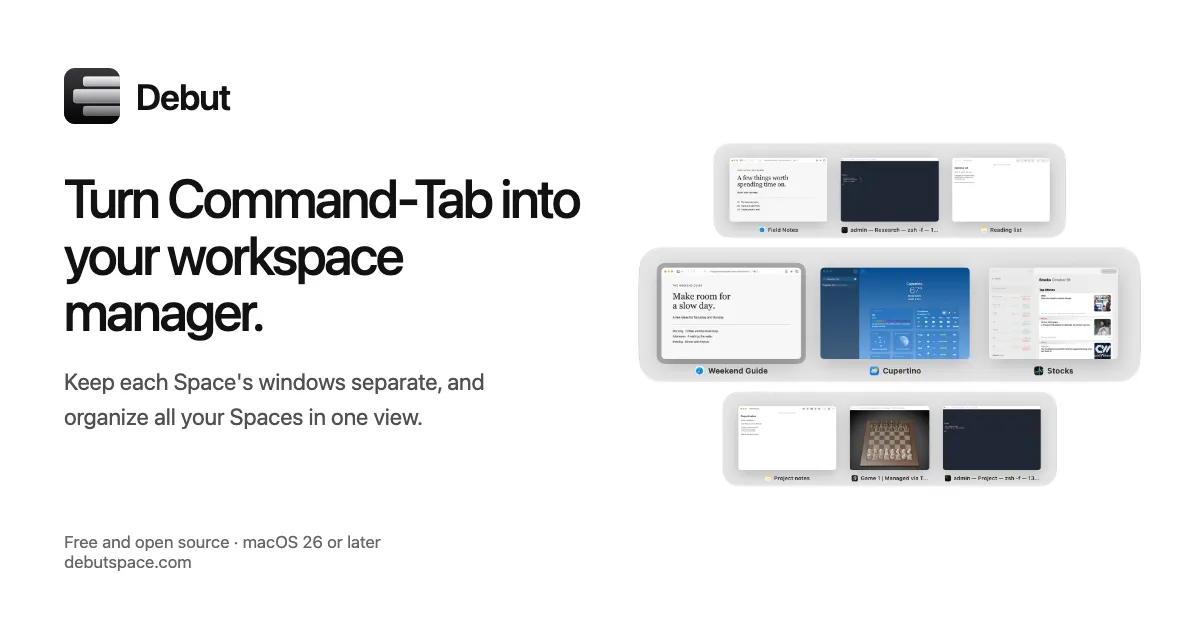
Turn Command-Tab into your workspace manager
以下正文同步自 Hacker News 最新,版权归原站所有,已转换为易读排版。
Turn Command-Tab into your workspace manager
Keep each Space's windows separate, and organize all your Spaces in one view.
Free and open source · macOS 26 or later · Apple Silicon
With Command-Tab open on Desktop 2, releasing it switches from Weekend guide to Cupertino. Command-Tab and 3 then slide to Desktop 3, and Command-Tab, 2 and Tab slide back to Weekend guide on Desktop 2.
The demo couldn’t load. The feature description is still available.
macOS CommandTab mixes apps from all your Spaces. Debut keeps each Space separate, and OptionTab shows every window from every Space.
Manage Spaces from Command-Tab
Jump to SpaceSimply click to go to any Space. Use Command with a number key to jump, or CommandOptionTab to cycle through Spaces. Move windowDrag a window to another Space. Or press Command↑ or Command↓. Add SpaceDrag a window to + to put it in a new Space. Or press CommandN.Requires macOS 27 or later. Merge SpaceDrag a Space onto another to merge them. Or press CommandDelete to remove it.Requires macOS 27 or later.
In Command-Tab, clicking Field Notes on Space 1 goes there. Command-Tab and Command-2 then return to Weekend Guide on Space 2.
The demo couldn’t load. The feature description is still available.
Skip the half-second slide every time you change Spaces.
Debut
macOS
Debut
Two synchronized recordings press Control-Right and then Control-Left between the same Spaces. The first slides with the macOS animation; the second switches instantly with Debut.
The demo couldn’t load. The feature description is still available.
Material
Native Clear Regular
Preview size
100% 150% 250% 400%
App icon position
Title Corner Top Bottom
Glass tint
0% 50% 100% Requires macOS 27.
Free and open source · macOS 26 or later · Apple Silicon
Any Apple Silicon Mac on macOS 26 or later. Adding, removing and merging Spaces requires macOS 27.
Open the download, drag Debut to Applications, and open it. Allow Accessibility when asked.
macOS requires it before an app can respond to shortcuts like CommandTab or move windows.
To show previews of your windows in the switcher. It's optional. Without it, Debut shows app icons instead. Previews never leave your Mac.
No. Everything stays on your Mac. Crash reports are only sent if you allow them.
No. Debut works alongside Mission Control and your existing Spaces.
Press Enter or Space to pause or play this demo.
正文由 探How 从来源站点 RSS 同步,内容未经改写;遇到排版缺失或需要图片、视频时请以原文为准。