Download YouTube Videos, Playlists and Channels Easily with Python Copy
⚡️ High-Quality YouTube Video, Playlist & Channel Downloader 🎥
以下正文同步自 Hacker News 最新,版权归原站所有,已转换为易读排版。
⚡️ High-Quality YouTube Video, Playlist & Channel Downloader 🎥
Download any YouTube video, playlist, or entire channel just by pasting a URL. Videos are saved in high quality — no account needed.
Minimum Python version: 3.10+. Older versions can be stuck on outdated yt-dlp builds and may fail with YouTube 403 errors.
New here? Follow these steps and you'll be downloading videos in a few minutes.
Download Python 3.10 or newer and install it. Python 3.13 is recommended for best compatibility with the latest yt-dlp releases.
Windows users: during installation, tick the "Add Python to PATH" checkbox at the bottom of the first screen — easy to miss!
FFmpeg handles video/audio merging. Deno is a JavaScript runtime that yt-dlp needs to solve YouTube's download challenges — without it, videos may download in low quality (240p/360p).
brew install ffmpeg deno
Don't have Homebrew? Install it here first (one command, takes about a minute).
Windows — download FFmpeg here, unzip it, and add it to your PATH. (step-by-step guide) Then install Deno:
irm https://deno.land/install.ps1 | iex
Linux (Ubuntu/Debian) — open a terminal and run:
sudo apt-get install ffmpeg curl -fsSL https://deno.land/install.sh | sh
Step 3 — Download this project
Click the green Code button at the top of this page → Download ZIP. Unzip it anywhere you like (your Desktop is fine).
macOS: right-click the unzipped folder → New Terminal at Folder
Windows: open the folder, click the address bar at the top, type cmd, press Enter
Linux: right-click the folder → Open Terminal
Step 5 — Set up a sandbox and install libraries
From Python 3.11 onwards, many macOS and Linux systems restrict global pip install in system-managed environments (PEP 668). Use a virtual environment to install dependencies in an isolated project sandbox.
python3 -m venv venv source venv/bin/activate pip install -r requirements.txt
The requirements install a pinned, reviewed yt-dlp release from PyPI, including its default dependencies for YouTube challenge solving. This avoids silently installing new code from a moving upstream branch. If YouTube changes break downloads, review the latest yt-dlp release and deliberately update the version in requirements.txt before reinstalling. The pinned version does not automatically update when you rerun pip install -r requirements.txt.
Windows: use venv\Scripts\activate instead of source venv/bin/activate.
You'll see (venv) appear at the start of your prompt — that means the sandbox is active. That's it — you're ready!
Each time you open a new terminal, run source venv/bin/activate (macOS/Linux) or venv\Scripts\activate (Windows) before using the script.
First, make sure your virtual environment is active. If you see (venv) at the start of your terminal prompt, you're good. If not, run:
source venv/bin/activate
(Windows: venv\Scripts\activate)
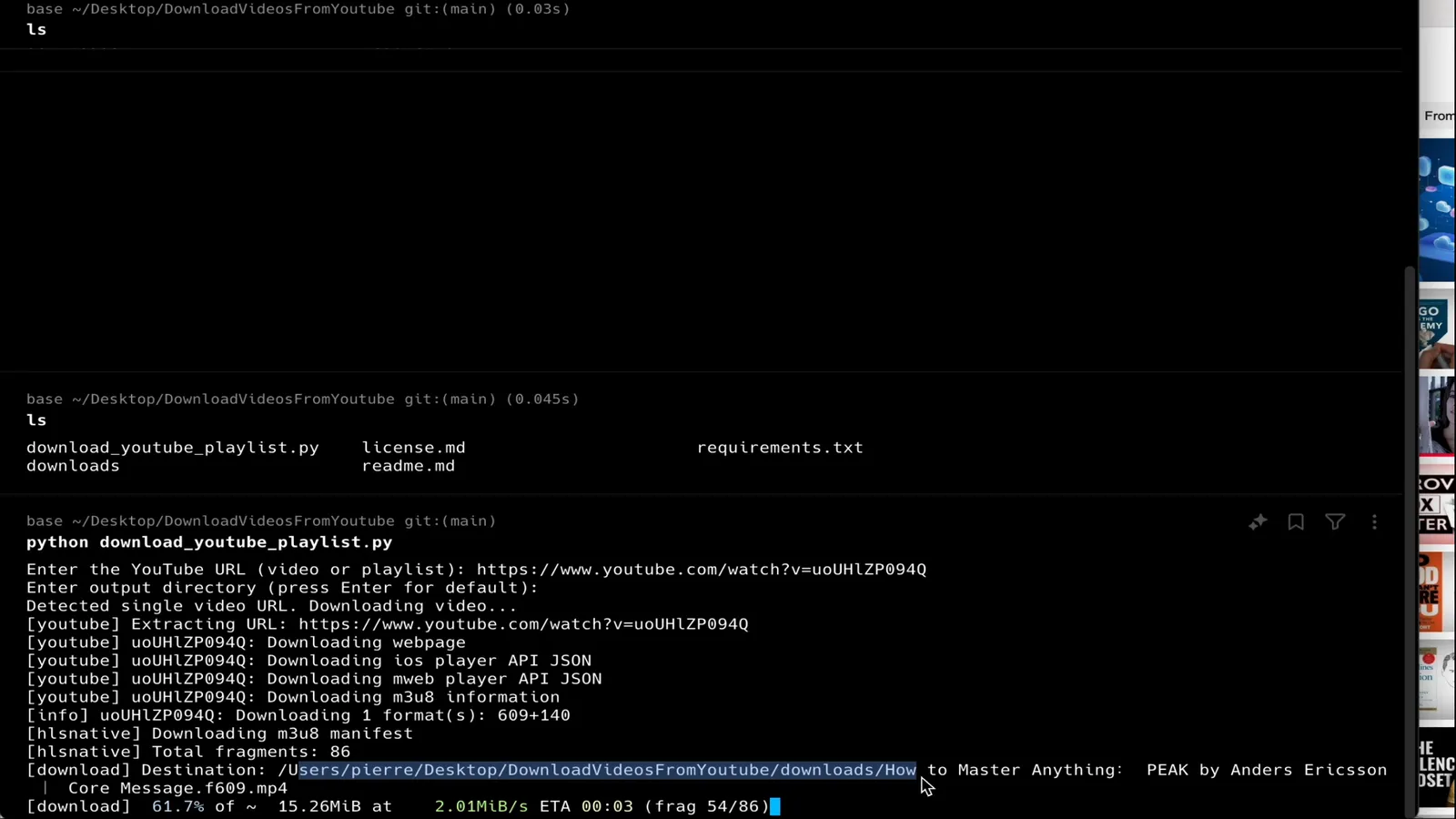
python download.py
You'll be asked for a YouTube URL. Paste it and press Enter — that's it!
Enter YouTube URL(s): https://www.youtube.com/watch?v=Hhb8ghB8lMg
Your video will be saved in the downloads/ folder.
Enter YouTube URL(s): https://youtu.be/abc123, https://youtu.be/def456, https://youtu.be/ghi789
Or press Enter on an empty prompt to switch to one-URL-per-line mode:
Enter YouTube URL(s): [press Enter] 📝 Multi-line mode activated! URL 1: https://youtu.be/abc123 URL 2: https://youtu.be/def456 URL 3: [press Enter again to finish]
You can freely mix videos, playlists, and channel URLs in the same command — the script handles each one correctly.
If one URL fails, the rest keep downloading. A dead link or private video won't stop your other downloads.
When the script asks for a format, choose option 2:
Choose format:
- MP4 Video (default)
- MP3 Audio only Enter choice (1-2, default=1): 2
Great for music playlists, podcasts, and lectures.
Paste a playlist URL and every video in it will be downloaded and saved in its own folder:
Enter YouTube URL(s): https://www.youtube.com/playlist?list=PLxxxxxxx
You can download multiple playlists at once by separating their URLs with commas.
MP3 mode works with playlists too — all audio files are saved in the same numbered folder structure.
downloads/ ├── My Awesome Playlist/ │ ├── 01-First Video.mp4 │ ├── 02-Second Video.mp4 │ └── 03-Third Video.mp4 ├── Another Great Playlist/ │ ├── 01-Another Video.mp4 │ └── 02-Last Video.mp4 └── Individual Video.mp4
📺 Channel Downloads
Paste any YouTube channel URL to download all its videos:
Enter YouTube URL(s): https://www.youtube.com/@channelname
All these URL formats work automatically:
Videos are saved in a folder named after the channel, sorted by upload date.
MP3 mode works for channels too — useful for music or podcast channels to save disk space.
Heads up: channels with hundreds of videos can take a long time to download. The script paces requests automatically to avoid being blocked by YouTube.
downloads/ ├── TechChannel/ │ ├── 20240815-Latest Tech Review.mp4 │ ├── 20240810-Programming Tutorial.mp4 │ └── 20240805-Tech News Update.mp4 └── Individual Video.mp4
🧹 Optional: Clean Up Incomplete Downloads
If a download was interrupted (e.g. you lost internet or closed the terminal), some unfinished files may be left in the downloads/ folder. To remove them, run:
python3 cleanup_downloads.py
This only deletes incomplete files (.part, .ytdl, temp fragments) — your finished downloads are untouched. No need to activate the virtual environment for this; it uses no external dependencies. Most people will never need this.
If you're comfortable with the command line or want to contribute to the project:
Requirement: use Python 3.10+ before creating the virtual environment.
git clone https://github.com/pH-7/Download-Simply-Videos-From-YouTube.git cd Download-Simply-Videos-From-YouTube
Create a virtual environment (keeps this project's packages separate from your system)
python3 -m venv venv source venv/bin/activate
Windows: use venv\Scripts\activate instead. Run this activation command again each time you open a new terminal.
pip install -r requirements.txt
Install FFmpeg — see Step 2 of Quick Start above.
List available formats for a video
To see all quality options for a specific video before downloading:
python download.py --list-formats
Control how many downloads run at the same time
The script supports simultaneous downloads. When downloading multiple videos, you'll be asked how many to run in parallel (1–5, default is 3). More = faster, but uses more bandwidth.
Number of concurrent downloads (1-5, default=3): 5
Customise the script
You can edit download.py to change:
Pierre-Henry Soria — sr software AI engineer, extremely passionate about everything related to automation, content creation, and building simple yet efficient tools that save time 🚀
☕️ Buy me a coffee if this saved you some time!
This script is for educational purposes only. Before using this script, please ensure you have the right to download the content and that you comply with YouTube's terms of service.
正文由 探How 从来源站点 RSS 同步,内容未经改写;遇到排版缺失或需要图片、视频时请以原文为准。